claude-manager-kit: Run Your Work Day From One Claude Code Manager Session
claude-manager-kit: Run Your Work Day From One Claude Code Manager Session
By Muhammad Asim. Package: claude-manager-kit on npm. More of my packages: my npm profile. Version covered: 1.1.0.
The problem
I am an engineering lead. My day is not one task. It is chat messages, mail, tickets, pull requests, reviews, standups and a list of things people are waiting on me for.
I use Claude Code a lot. At some point I had too many sessions open. One for a feature, one for a review, one on another account, one on another machine. I kept losing track of which session was doing what. And I kept hitting plan limits at the worst moment.
So I changed how I work. I now run my whole day through one Claude Code Desktop session that acts as my manager. It triages my chat, mail and tickets. It replies in my tone. It sends the hands-on development and PR reviews to "lead" sessions on extra Claude accounts and on another machine. It keeps a live board. It watches the usage limits of every account. And it learns from my good and bad ratings.
I packaged that setup so you can get it in one command:
npx claude-manager-kit
You answer a few plain questions, which takes about five minutes. Then you open the generated folder in Claude Desktop and paste one prompt. There are no API keys and no extra bill. It runs on the Claude plans you already have.
This post is the full guide. It shows every wizard step with a real terminal screenshot, then the daily commands, then how the learning and the safety model work.
A note on the screenshots. Every terminal image was captured from a real run on Windows 11, in a throwaway user profile with a fake user ("Sam Rivera"), a fake assistant ("Atlas") and a small stand-in for the claude command. That means no real account, folder or login was used, and no plan usage was spent. The usage numbers and lead answers you see come from that stand-in. The Claude Code Desktop pictures are illustrations from the project, not live captures.
What you get
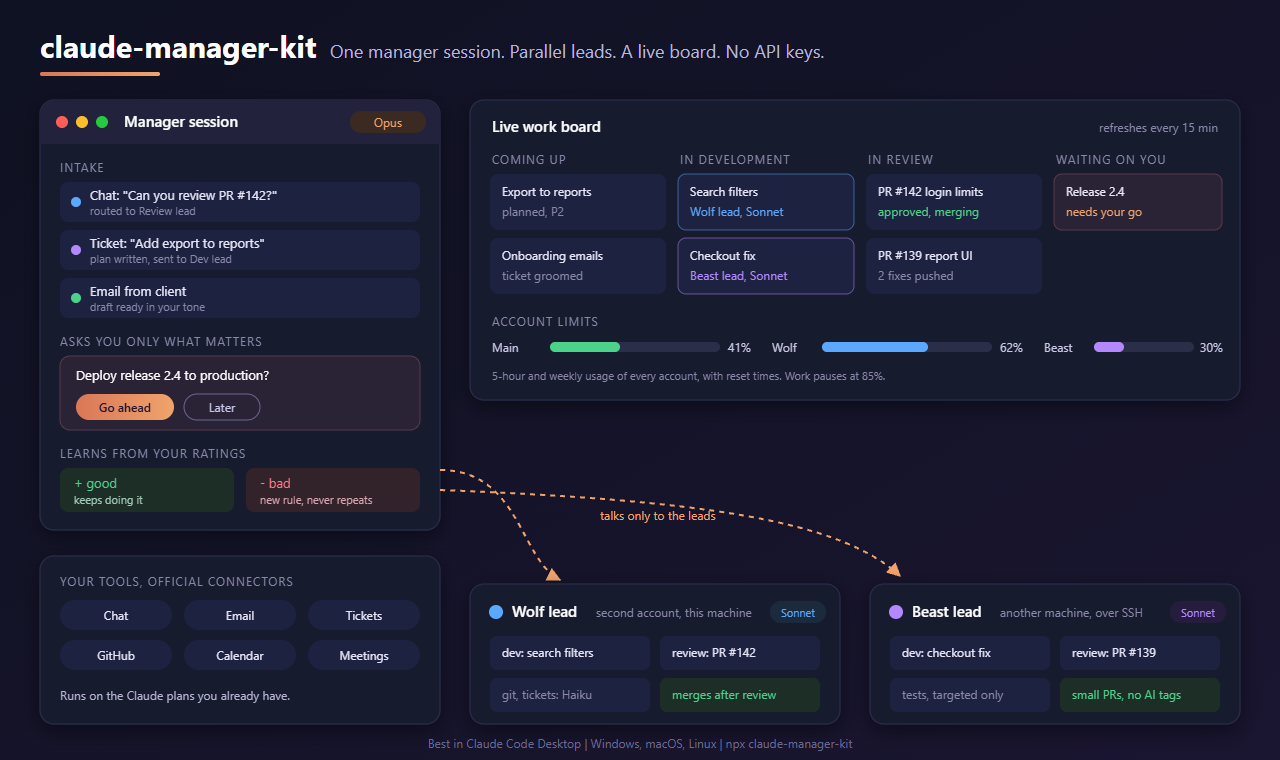
- A manager session. One long-lived Claude Code session that owns intake, triage, routing and follow-ups. You talk to one place.
- Leads. Headless Claude sessions on extra accounts on your computer, or on other computers over SSH. They do the development and the reviews while the manager stays free.
- A live board. Open work, done work, running jobs and plan limits. In Claude Code Desktop it can be a live artifact. Otherwise it is plain files in
board/. - Limit watching. The manager checks every account's usage before starting work, so nothing stalls at the 5-hour wall.
- Your tone. It reads messages you sent and learns how you write. It adapts to the audience and asks you first when something is risky.
- Learning from ratings. Say "good" or "bad". Good is kept as what to repeat. Every bad rating becomes a written rule.
- A portable home folder. Everything it learns lives in one folder you can copy to a new account or machine.
Who it is for
It is for people who run software work day to day:
- Developers who want development and reviews to run in parallel.
- QA engineers who juggle tickets, builds and reports.
- Engineering leads and managers who keep up with messages, reviews and people.
- Product owners who create and groom tickets and need the board to stay current.
Best in Claude Code Desktop
The kit is built for the Code tab of the Claude desktop app. There the manager runs as one long-lived session. It can start and message your other sessions, create scheduled tasks (digests, board refresh, daily learning) and use your connectors.
Terminal-only Claude Code, and Linux (which has no desktop app), work in a reduced mode. What you lose there:
- Scheduled tasks and session loops are not created for you. You run
/loopor a cron job by hand. - The manager cannot list or message other sessions. It drives leads with
cmk leadinstead. - The board is kept as plain files in
board/, not a live artifact.
How it works: three setup types
There are three setups, and you can mix them. In every one, the terminal and Desktop session uses your main account. Leads use the extra accounts or machines. Plan limits are per account, which is the whole point of extra accounts.
For each type below you get the wiring diagram first, then what it looks like in Claude Code Desktop (sessions on the left, the manager chat in the middle, the work board on the right), then when to pick it.
Solo
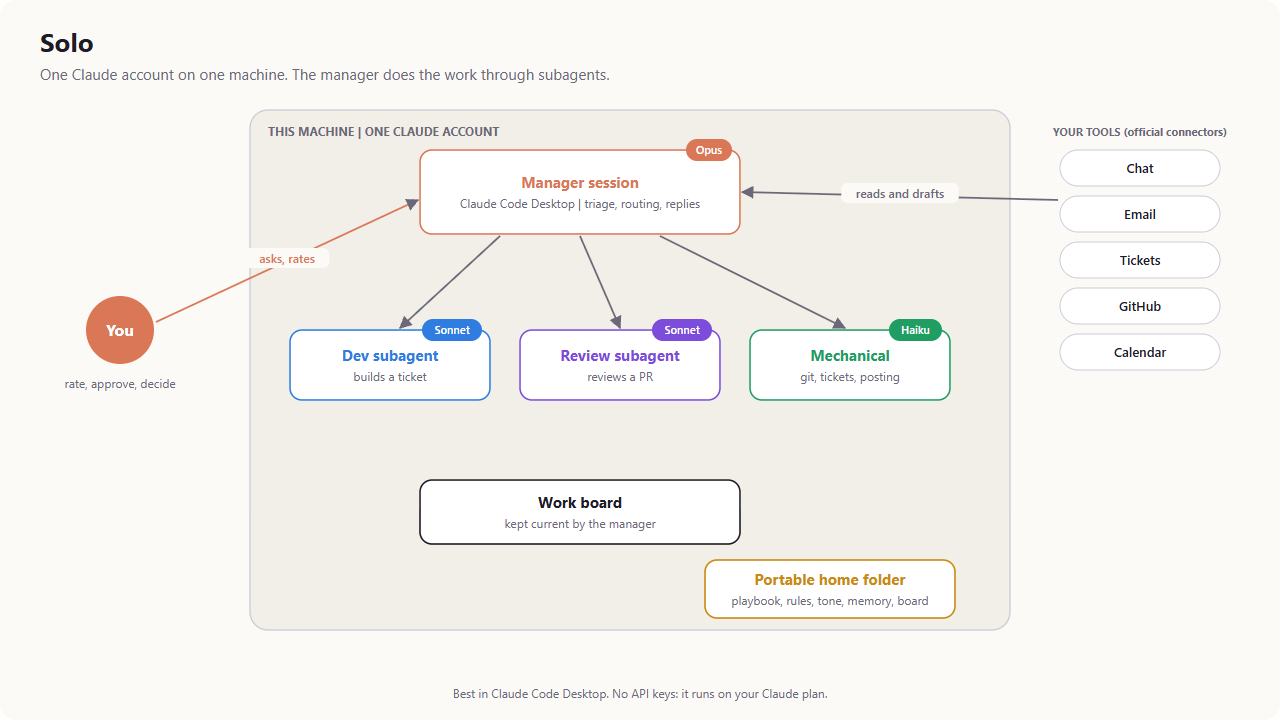
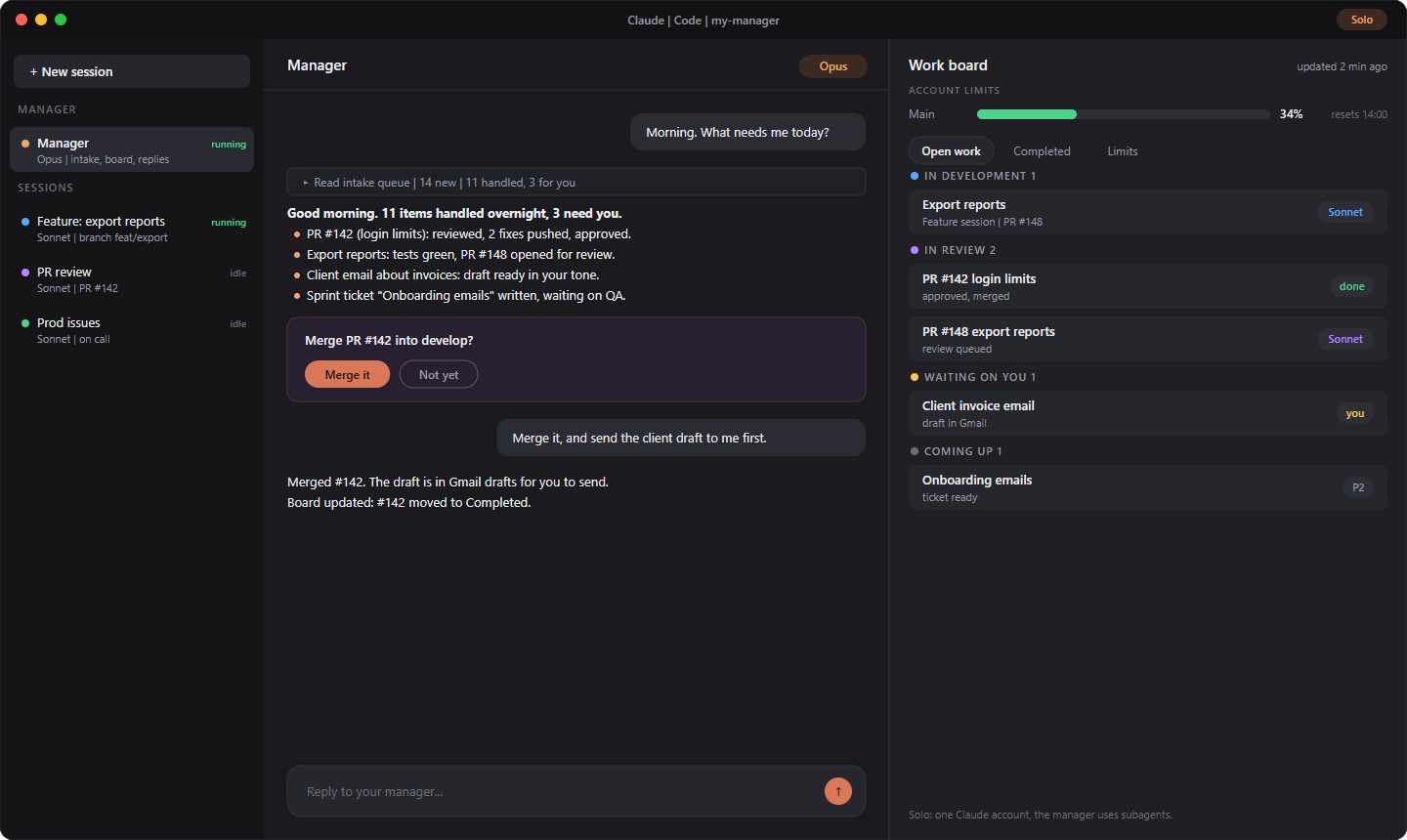
One Claude account. The manager triages and does the work itself with subagents.
Pick it when you have one Claude plan, or you want to try the kit with the least setup. Everything else in this post still applies. You just have no leads.
Multi-account
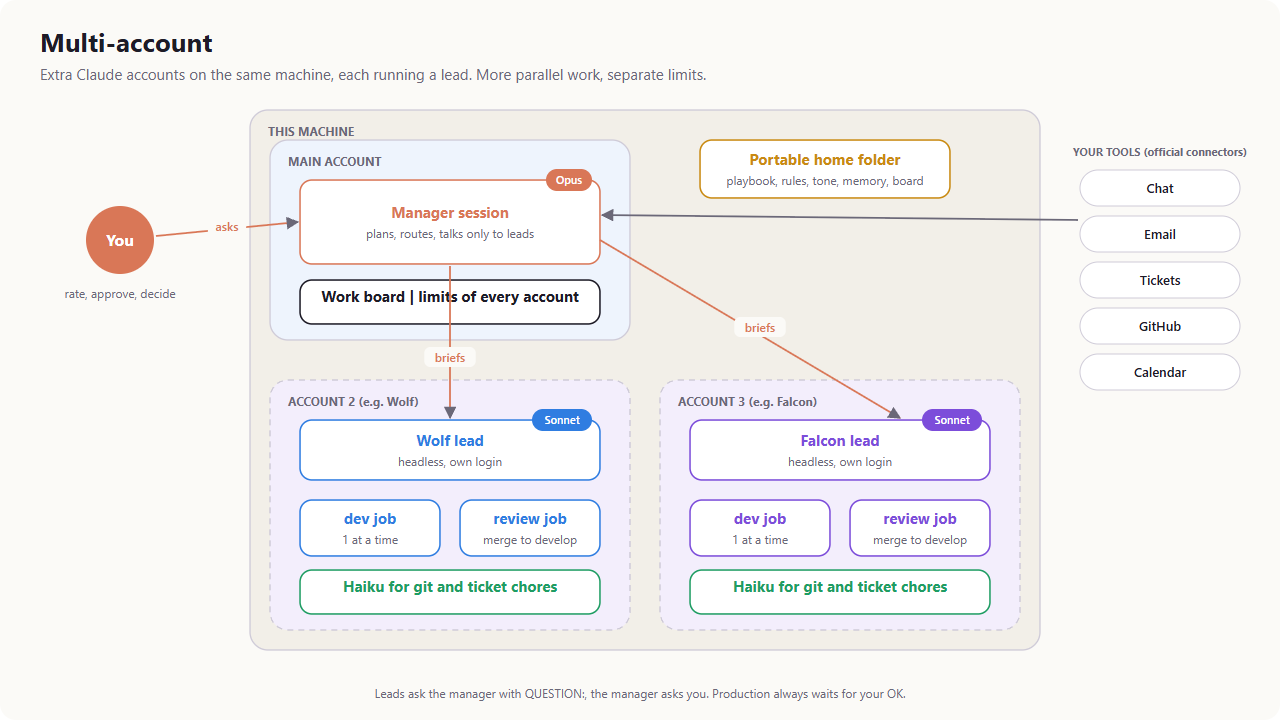
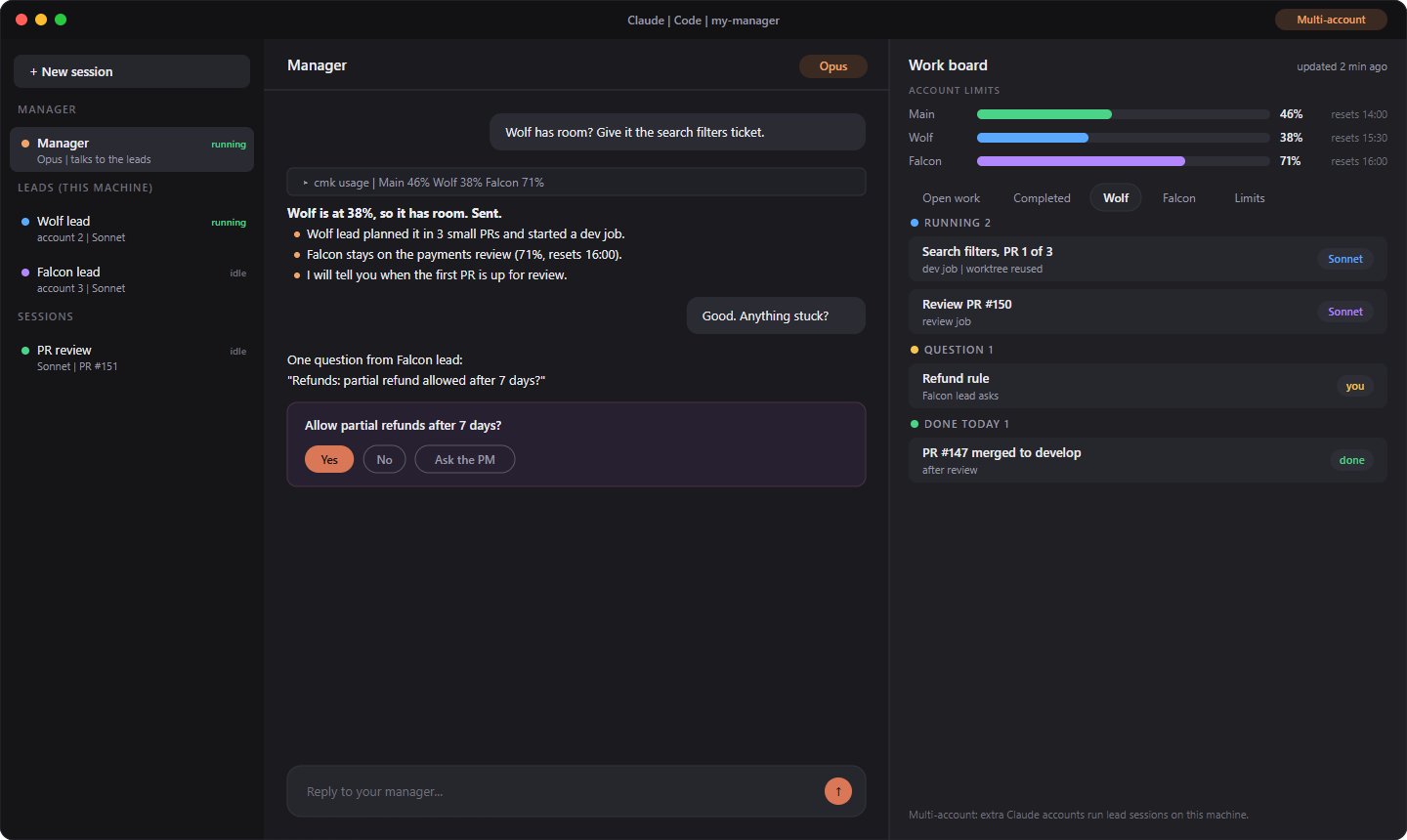
Extra Claude accounts on the same computer run leads in parallel. Each has its own plan limits. In my examples the extra account is called "Wolf".
Pick it when you have a second (or third) Claude account you are allowed to use and you want development and reviews to run while the manager stays free. Use accounts you are allowed to use under Anthropic's terms.
Multi-machine
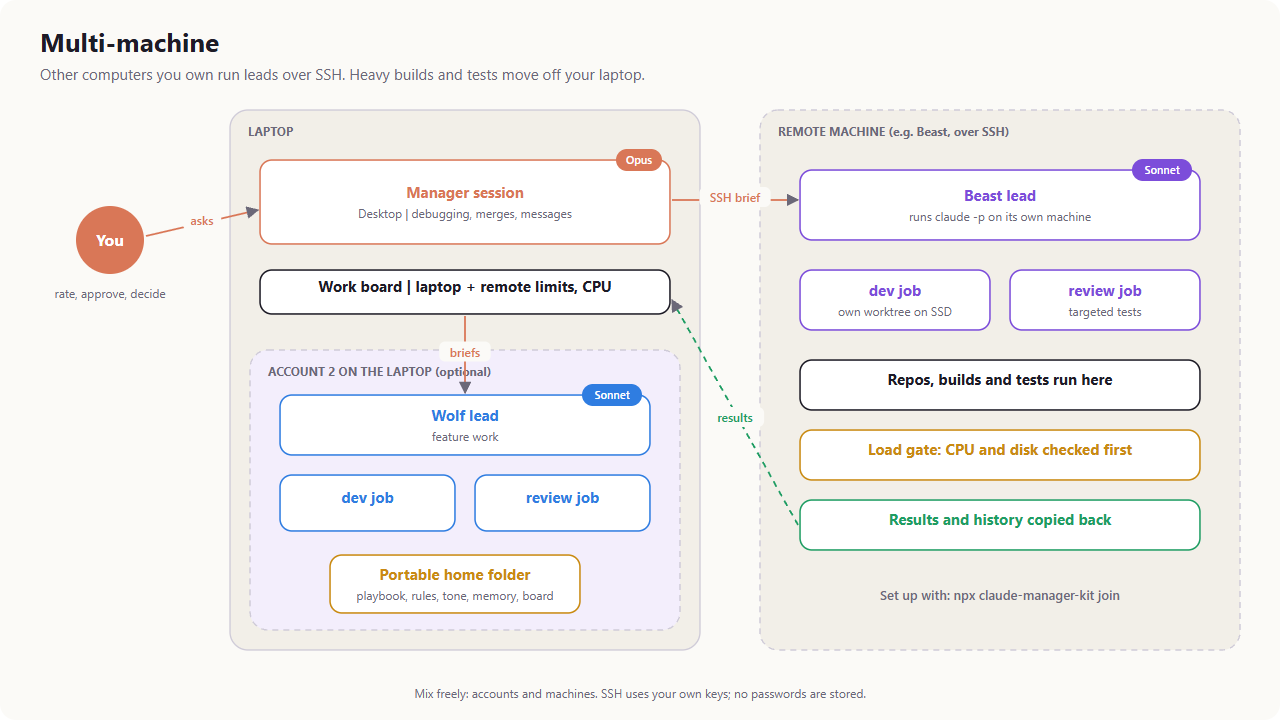
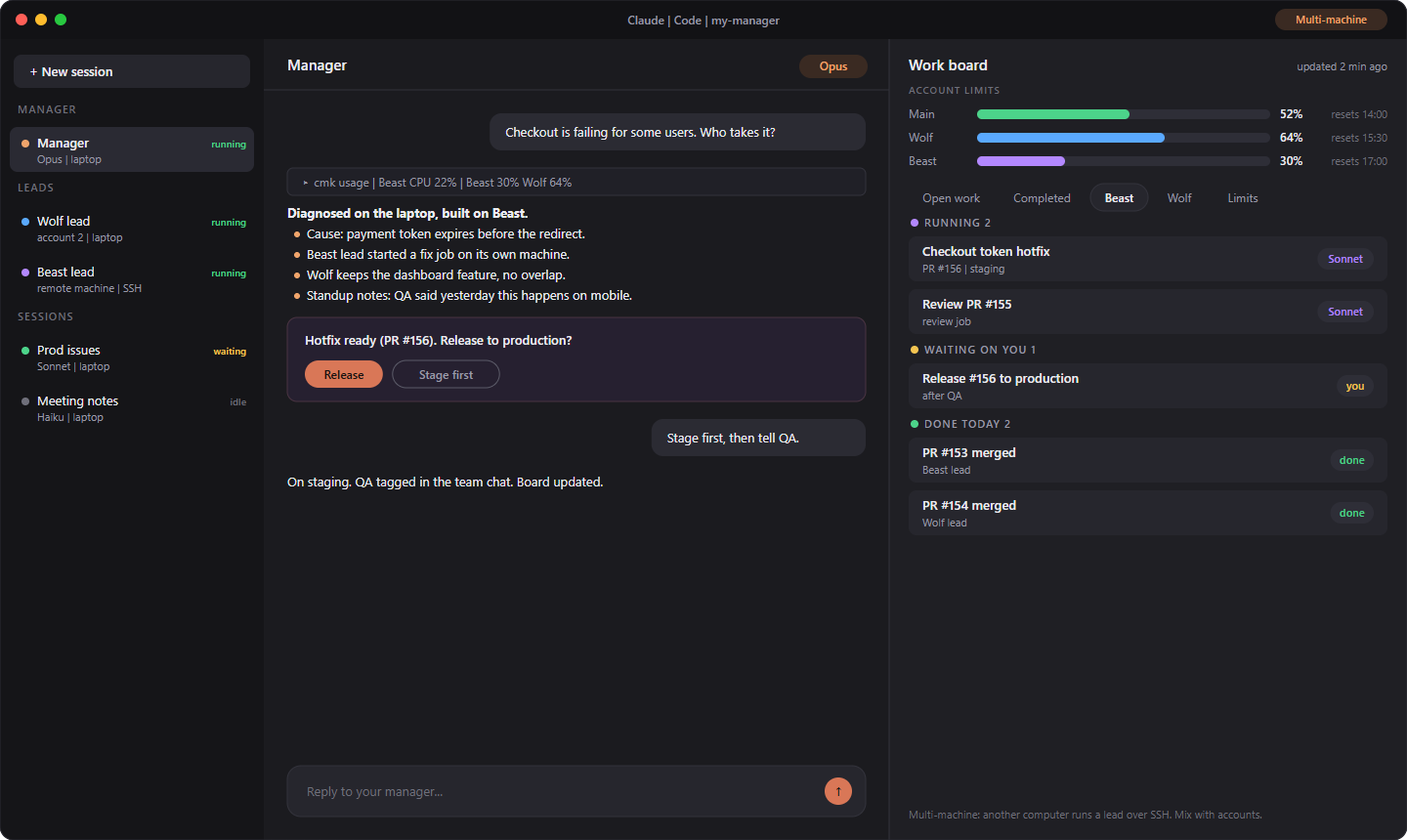
Another computer, reached over SSH, runs a lead. Heavy work never competes with your laptop. In my examples the machine is called "Beast". On that machine you run npx claude-manager-kit join once.
Pick it when you have a stronger desktop, a build box or a spare computer with Claude Code installed.
Mixed setups
You can have both: extra accounts on this computer and other machines. The wizard has a "Mixed" option for it, and it is chosen automatically if you add both kinds of leads.
Before you start
You need a few tools. This is what each system needs.
| Windows | macOS (untested) | Linux (untested) | |
|---|---|---|---|
| Node 18+ | winget install OpenJS.NodeJS.LTS | brew install node | your package manager, nodejs.org, or nvm |
| git | winget install Git.Git (Claude Code on native Windows needs Git for Windows) | xcode-select --install | sudo apt install git |
| Claude Code CLI | PowerShell: irm https://claude.ai/install.ps1 | iex | curl -fsSL https://claude.ai/install.sh | bash | same as macOS |
| Claude Desktop | yes, from claude.com/download | yes, /Applications/Claude.app | no desktop app, terminal mode |
| gh (optional) | only if you pick GitHub tools | same | same |
| ssh | OpenSSH Client (for multi-machine) | built in | built in or package manager |
| Start the manager | Desktop, Code tab, open the home folder, paste | same | cd <home> && claude, paste |
| Clipboard tool | clip (built in) | pbcopy (built in) | wl-copy, xclip or xsel |
| State lives in | %USERPROFILE%\.claude-manager-kit\ | ~/.claude-manager-kit/ | ~/.claude-manager-kit/ |
Any ordinary Claude Code install method works, including npm install -g @anthropic-ai/claude-code. After installing anything, open a new terminal so the PATH refreshes, then check with claude --version.
What I tested. I tested on Windows 11 with PowerShell, cmd and Git Bash, including paths with spaces. The macOS and Linux steps below are written from the platform documentation and are not yet tested by me. CI runs the unit tests on all three systems. If a step is wrong for your system, please report it.
Windows notes
- PowerShell, cmd and Git Bash all work. After
npm install -g claude-manager-kit,cmkworks in each. - If PowerShell says running scripts is disabled when you type
cmk, runcmk.cmdinstead, or allow local scripts once:
Set-ExecutionPolicy -Scope CurrentUser RemoteSigned
- In a
.batfile, start each call withcall cmk ..., or the batch file stops after the first one. - For multi-machine, install the OpenSSH client (Settings, Optional features, OpenSSH Client) and make a key with
ssh-keygen -t ed25519. Windows has nossh-copy-id, so install your key like this:
type $env:USERPROFILE\.ssh\id_ed25519.pub | ssh user@host "mkdir -p ~/.ssh && cat >> ~/.ssh/authorized_keys"
- If the other machine is Windows, enable the OpenSSH Server feature there. For an administrator account the key goes in
C:\ProgramData\ssh\administrators_authorized_keys. The tool detects the defaultcmd.exeshell.
macOS notes (not captured on this OS)
- Claude Desktop is the best experience. Open it, go to the Code tab, open the home folder and paste the starter prompt.
- On a Mac that should act as a lead machine, turn on Remote Login: System Settings, General, Sharing, Remote Login.
- SSH keys:
ssh-keygen -t ed25519, thenssh-copy-id user@host. - For non-interactive SSH,
claudemust be on the PATH. Put this in~/.zshenv, not only~/.zshrc:
export PATH="$HOME/.local/bin:$PATH"
Linux notes (not captured on this OS)
- There is no Claude Desktop for Linux, so the manager runs in terminal mode. Start it with
cd <home> && claudeand paste the starter prompt. Keeping it intmuxhelps it survive closing the terminal. - To have the prompt copied for you, install a clipboard tool:
sudo apt install wl-clipboard(Wayland) orxclip(X11). Without one, the wizard prints the prompt. - SSH keys:
ssh-keygen -t ed25519, thenssh-copy-id user@host. Make sureclaudeis on the PATH for non-interactive shells, for example near the top of~/.bashrc, above the "if not running interactively, return" line. - If
npm install -gfails with EACCES, set a user prefix and add it to your PATH, or just usenpx:
npm config set prefix ~/.npm-global
Then add ~/.npm-global/bin to your PATH in ~/.bashrc.
Step by step: the setup wizard
Run this in any terminal:
npx claude-manager-kit
npx claude-manager-kit setup does the same. You can pass --yes to accept every default, and --dry-run to write into a temporary folder and run no logins, no ssh and no clipboard. If you only want to look around, start with --dry-run. The wizard is safe to run again. Defaults are shown in brackets, so pressing Enter is always fine.
Step 1: environment check
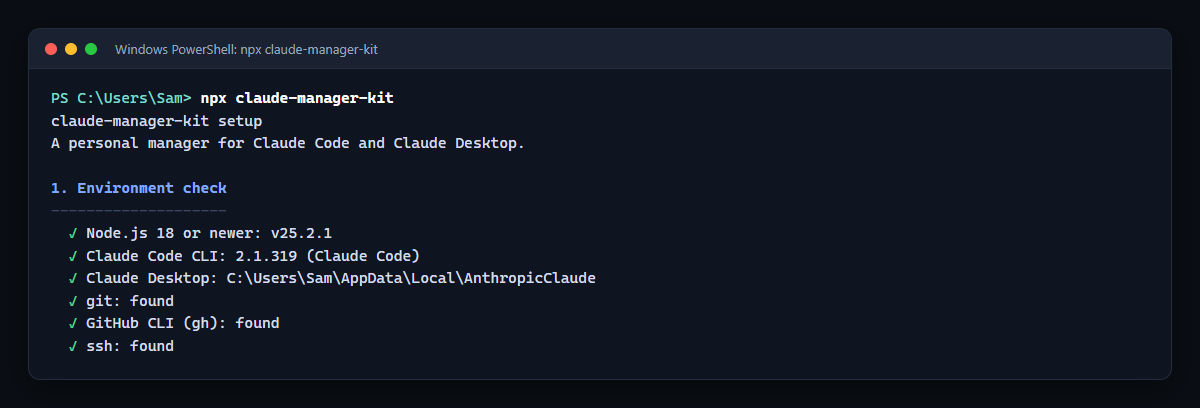
The wizard checks Node, Claude Code, Claude Desktop, git, gh and ssh. Node 18+, Claude Code and git are required. If one is missing it tells you how to fix it for your system and writes nothing.
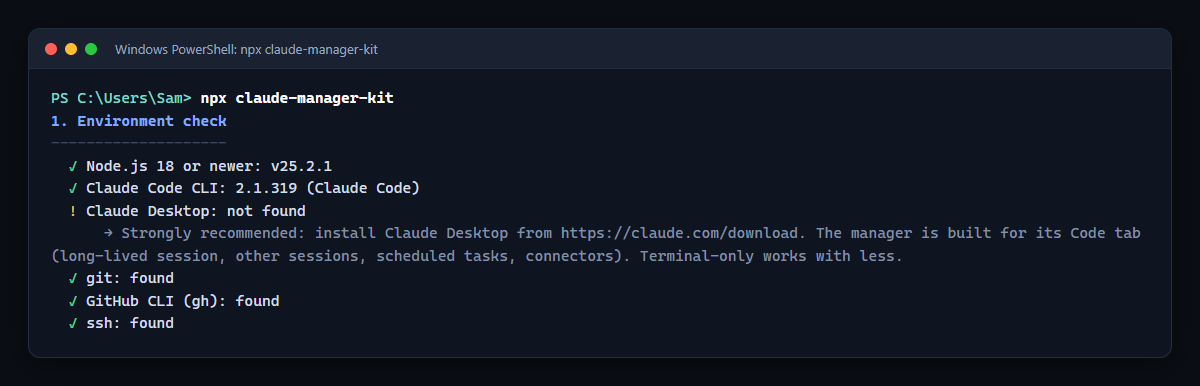
Claude Desktop, gh and ssh are optional. A missing Desktop is a warning, not an error, because terminal-only mode still works. ssh is only needed for multi-machine setups.
Step 2: about you
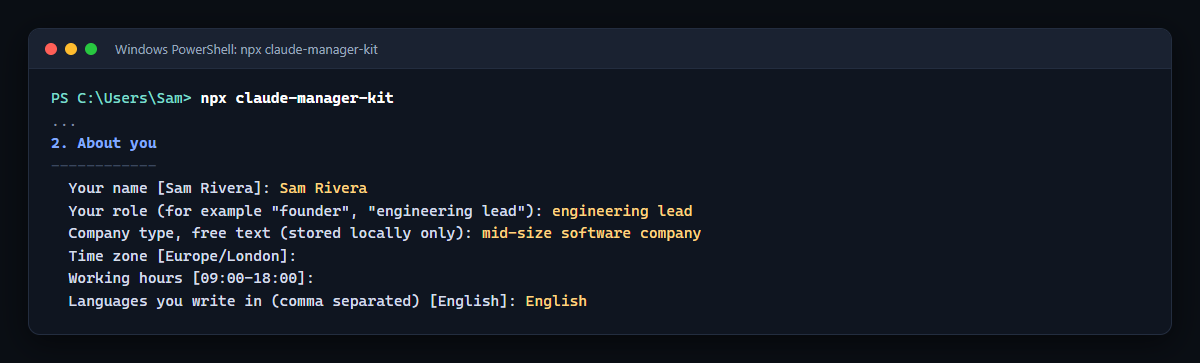
Your name, role, company type, time zone, working hours and languages. The company type is free text. It is stored on your disk only. The manager uses these to decide when to send digests and how to write to people.
Step 3: assistant name and home folder
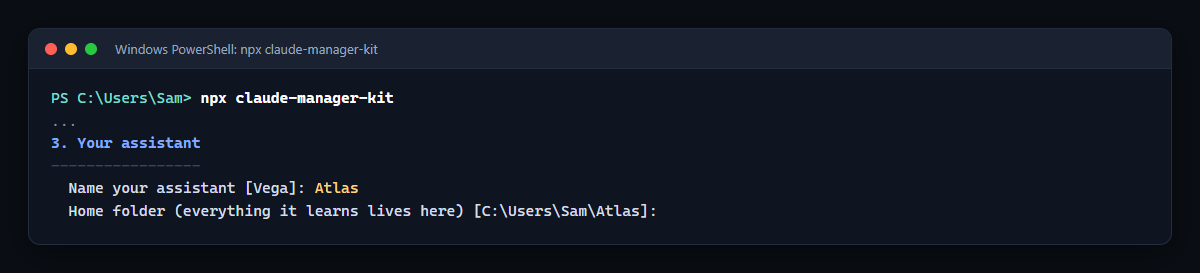
Give the assistant a name. The default is a random fun one. Then choose its home folder, by default ~/<name>. Everything it learns lives there, and it is the part you can copy to another machine.
Step 4: setup type
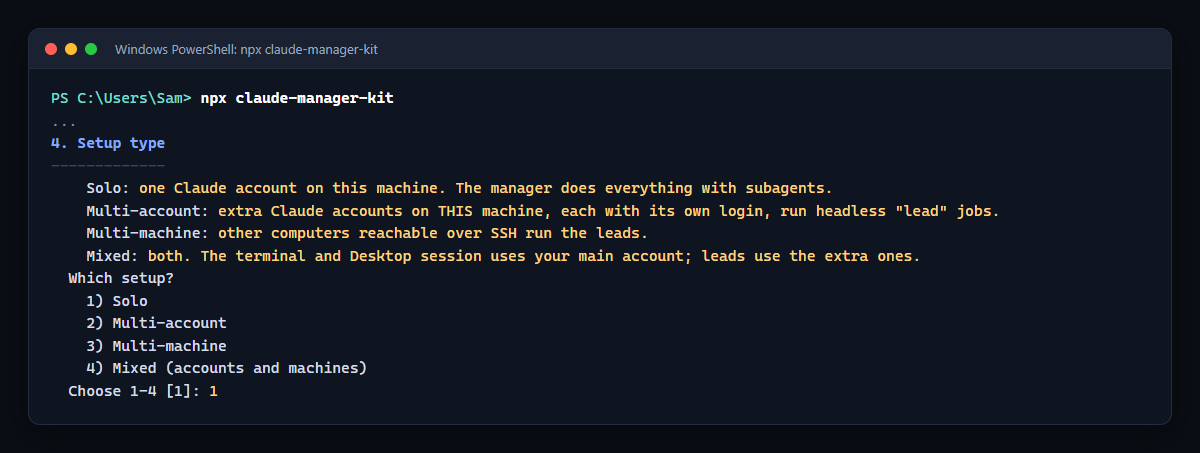
Choose solo, multi-account, multi-machine or mixed. If you chose solo, you are done with this step.
Multi-account. The wizard asks how many extra accounts (up to six) and a name for each.
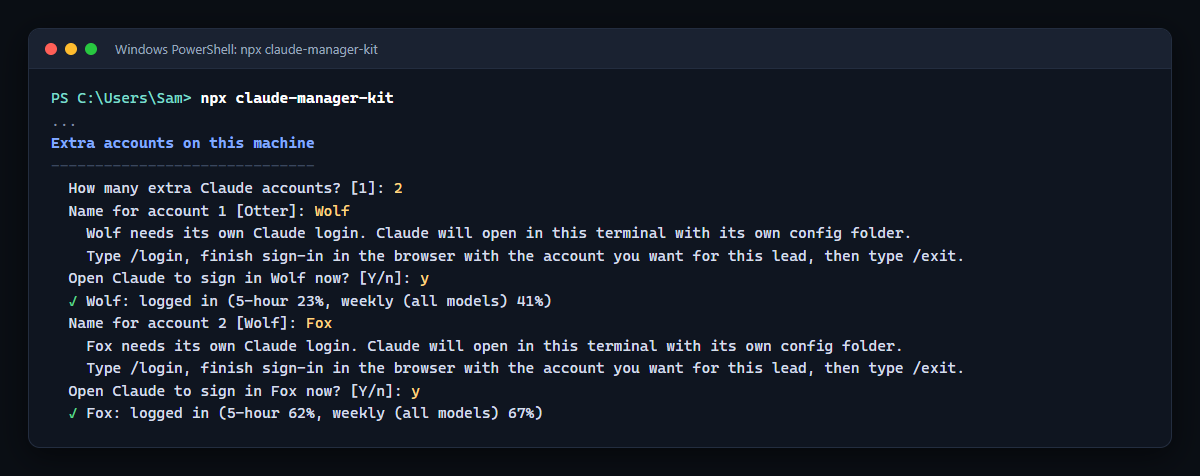
For each account it creates a config folder under ~/.claude-manager-kit/accounts/<name> and hands your terminal to claude. You type /login, sign in in the browser with the account you want for that lead, then type /exit. The wizard then checks the login by running claude -p "/usage", a local command that needs no model call. Claude's own screen appears between the question and the check, and I did not capture it, because it would show a real sign-in. Your password is never typed into the kit.
Multi-machine. The wizard asks how many machines, a name and an SSH target like user@host.
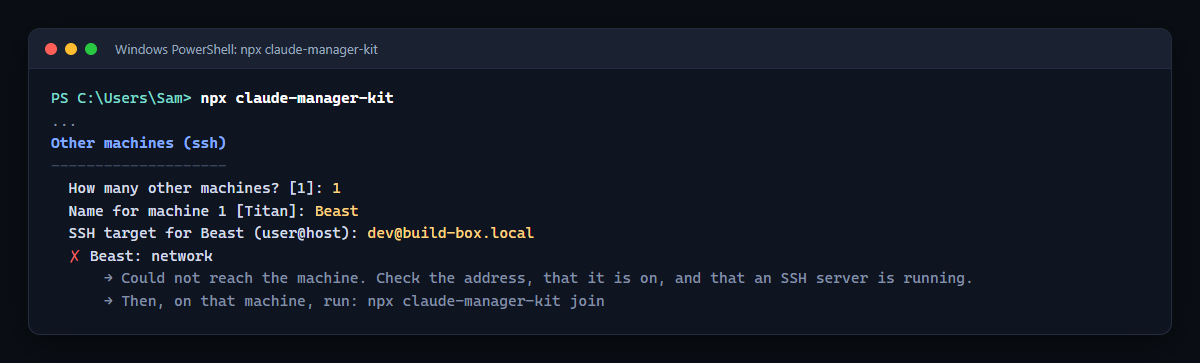
It tests the machine with ssh -o BatchMode=yes ... claude --version. That uses your own SSH keys and never asks for a password. If the test fails, you get a reason (login failed, host not reachable, or claude not found there) and a hint. The screenshot is an example: dev@build-box.local does not exist, so you see the failure path. It also prints the command to run on that machine:
npx claude-manager-kit join
Step 5: tools
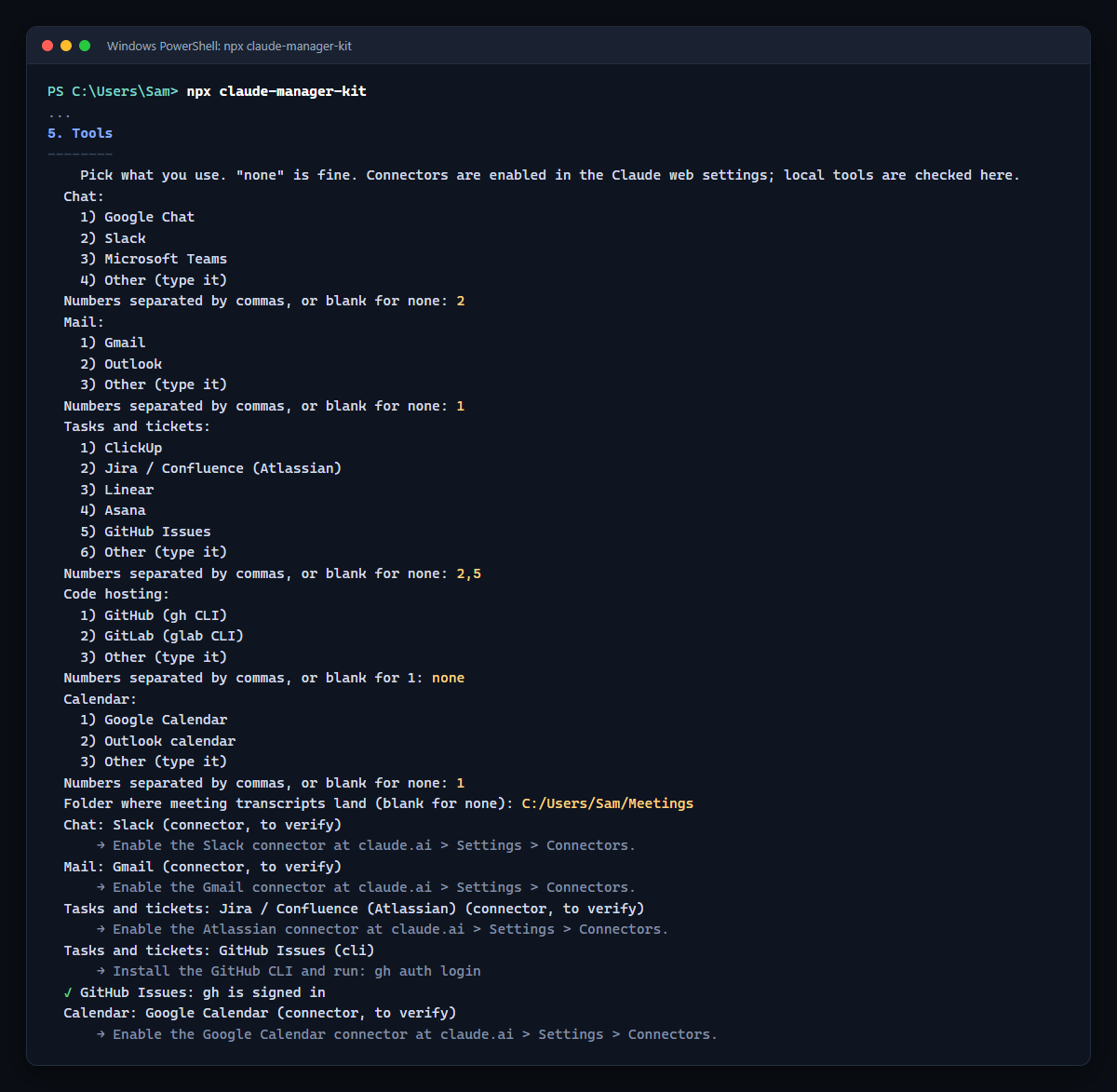
Pick what you use for each role, or none. The options:
| Role | Options | How each connects |
|---|---|---|
| Chat | Google Chat, Slack, Microsoft Teams | Google Chat is a local MCP server the wizard can add. Slack and Teams are claude.ai connectors. |
| Gmail, Outlook | claude.ai connectors | |
| Tasks and tickets | ClickUp, Jira, Linear, Asana, GitHub Issues | connectors, except GitHub Issues, which uses the gh CLI |
| Code hosting | GitHub (gh CLI), GitLab (glab CLI) | a CLI the wizard checks |
| Calendar | Google Calendar, Outlook calendar | claude.ai connectors |
| Meetings | a folder where transcripts land | a path on disk |
Connectors cannot be verified from a terminal. You enable them at claude.ai under Settings, Connectors. The wizard records them as "to verify" and the manager checks each one on its first run. Local MCP servers and CLIs are added and checked by the wizard itself. If you pick one you do not see, choose "Other" and type its name.
Step 6: autonomy
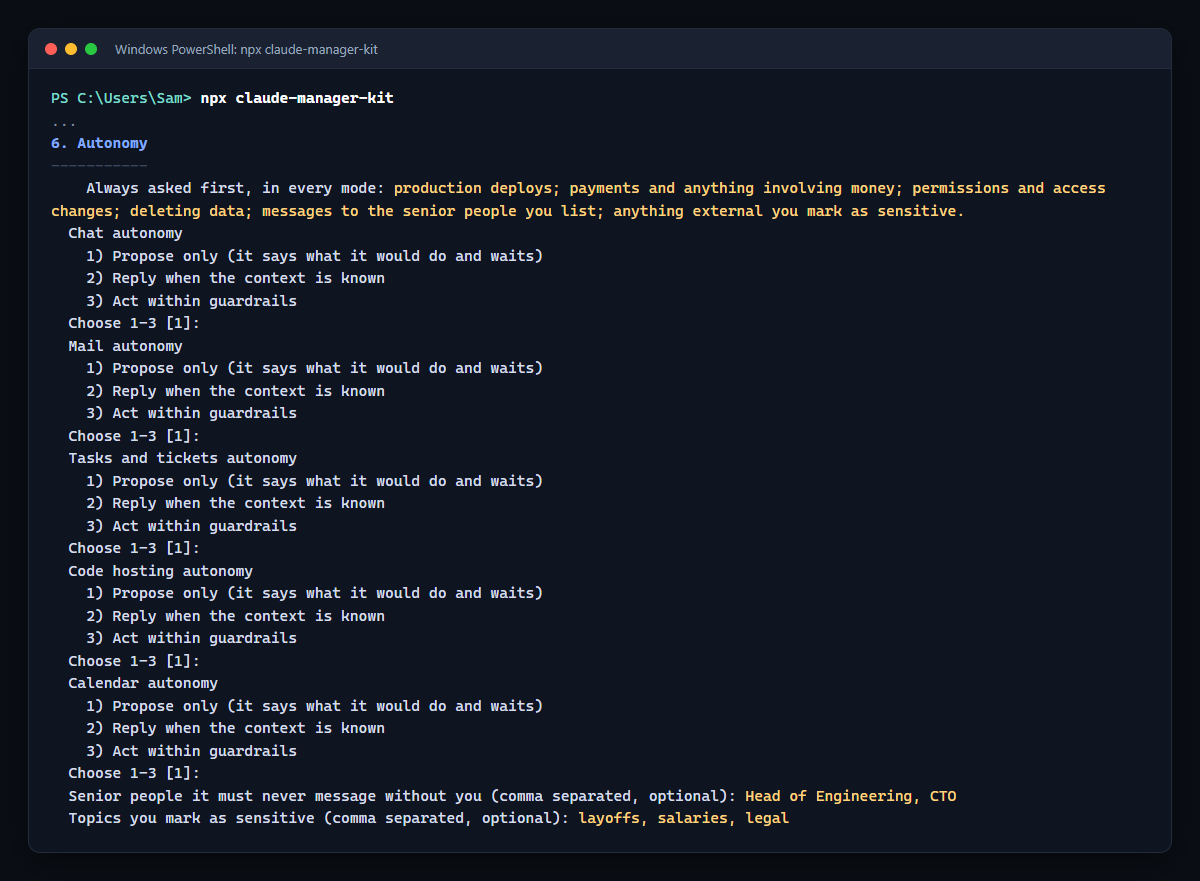
For chat, mail, tasks, code and calendar you choose one mode:
- Propose only. It says what it would do and waits. This is the default.
- Reply when the context is known. It replies itself when it knows enough.
- Act within guardrails. It acts, then reports in one line.
Some things are always asked first, in every mode, and the wizard cannot remove them: production deploys, payments and anything involving money, permissions and access changes, deleting data, messages to the senior people you list, and anything external you mark as sensitive.
You also list senior people it must never message without you, and topics you treat as sensitive. If you have leads, it asks one more question: whether leads may skip all permission prompts. The default is no. I keep it off.
Step 7: schedules
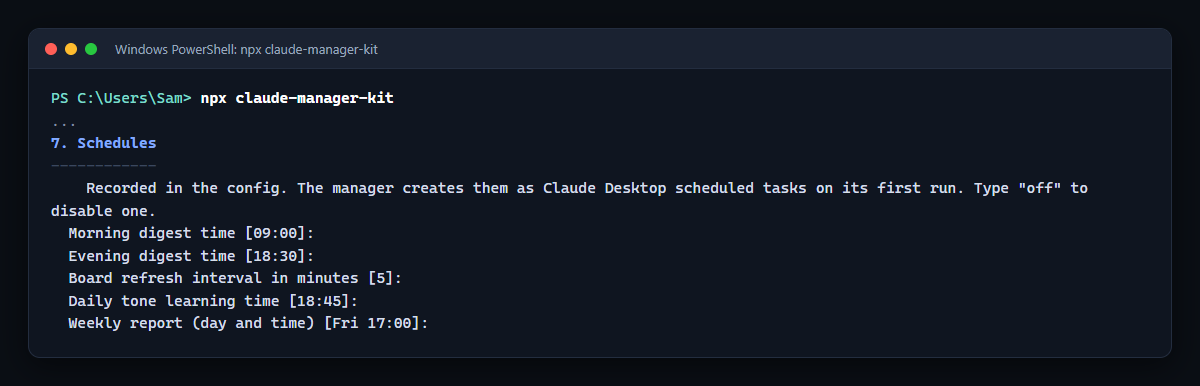
Morning digest, evening digest, board refresh interval, daily tone learning and a weekly report. Type "off" to disable tone learning or the weekly report. These are only recorded in the config. The manager creates them as Claude Desktop scheduled tasks on its first run.
Step 8: models
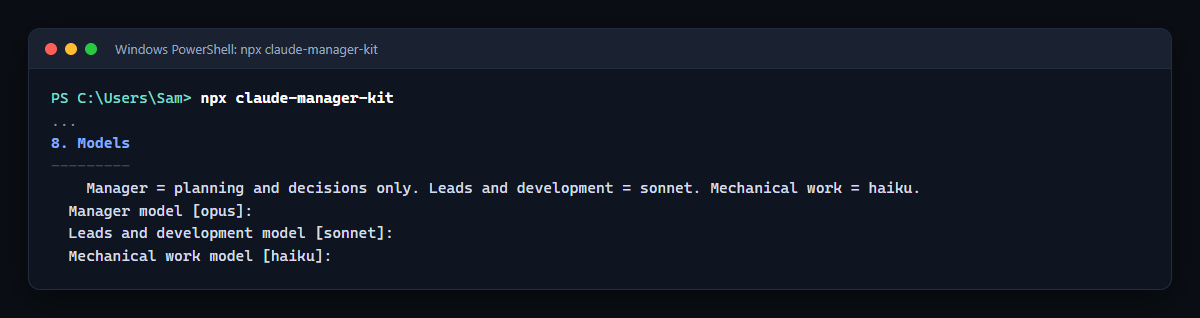
Three model choices:
- Manager:
opus. Planning and decisions only. - Leads and development:
sonnet. All coding, reviewing and debugging. - Mechanical work:
haiku. Git plumbing, ticket plumbing, renaming and formatting.
This split is one of the biggest limit savers. Most of the tokens go to the cheaper models.
Step 9: summary and confirm
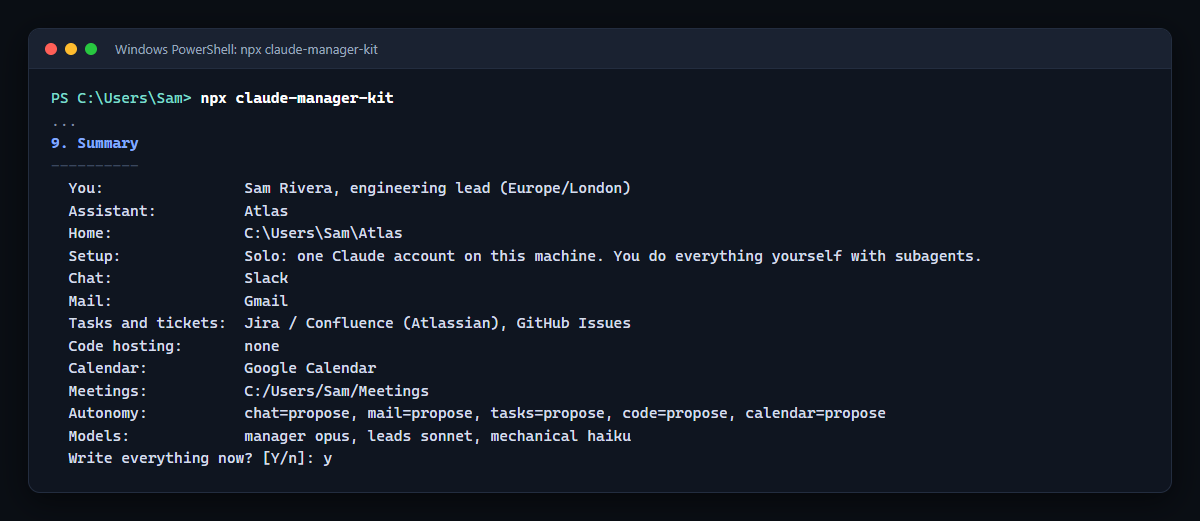
You see every answer in one list. Nothing is written unless you confirm. If you press Ctrl-C, or your input ends early, nothing is written.
Writing, checking and the final screen
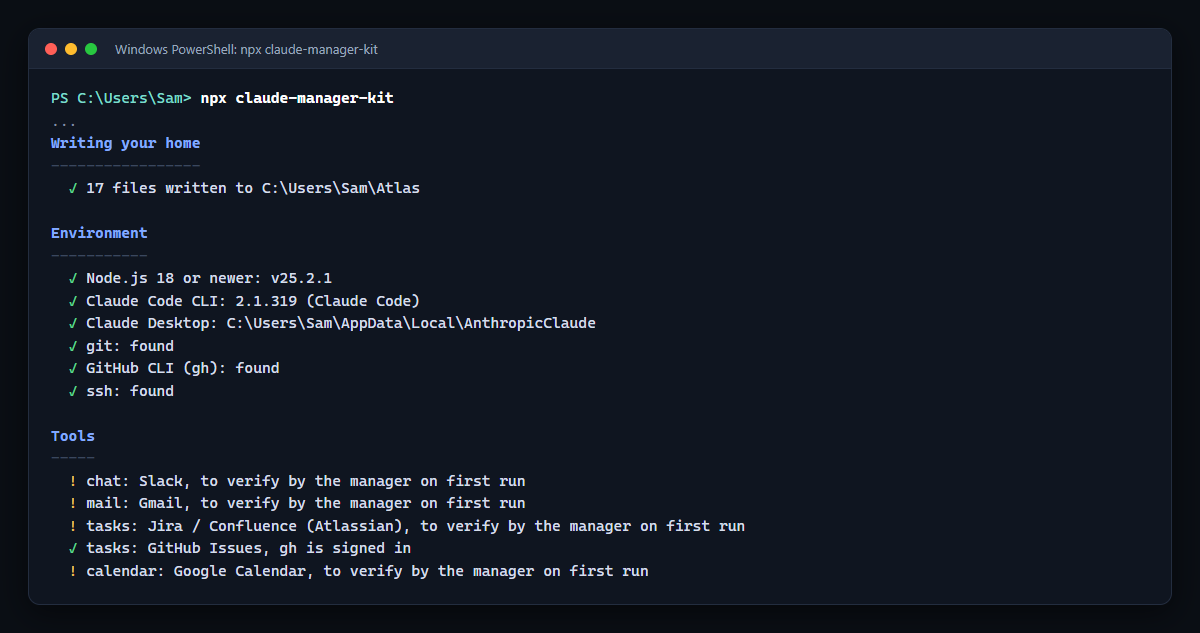
After you confirm, the wizard writes the home folder and runs doctor on it. The result in the screenshot lists my GitHub Issues choice as signed in, only because this was a stand-in demo. On your machine it tells you the truth.
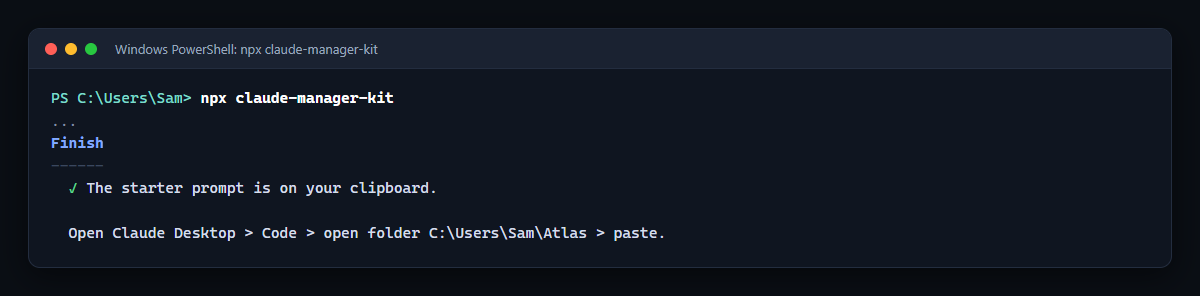
Last, it copies the starter prompt to your clipboard (using clip, pbcopy, wl-copy, xclip or xsel as available) and tries to open Claude Desktop. If there is no clipboard tool it prints the prompt for you. The next step is:
- Windows and macOS: Claude Desktop, Code tab, open the home folder, paste.
- Linux:
cd <home> && claude, then paste.
Your first run in Claude Code Desktop
Open Claude Desktop, go to the Code tab and open your home folder. Paste the starter prompt. Here is exactly what it says:
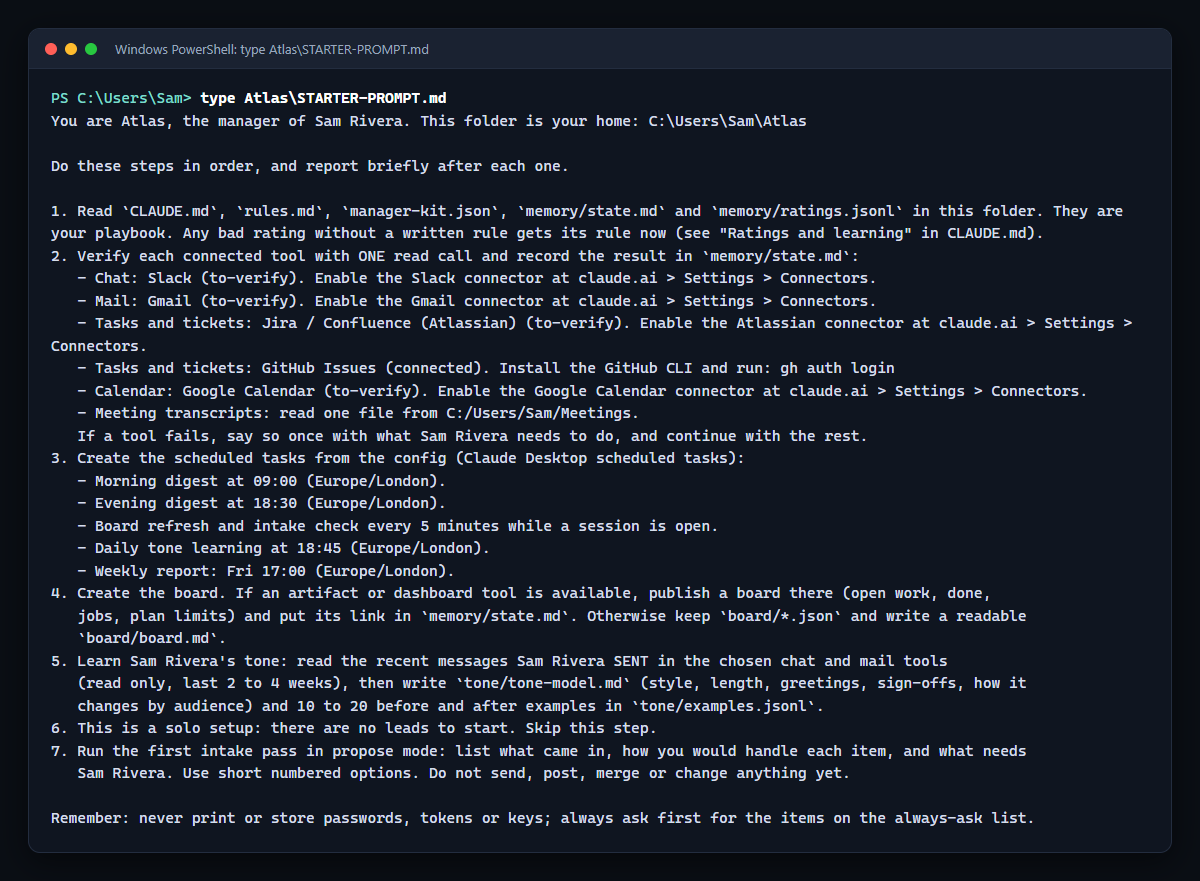
On the first run the manager does these things, in order, and reports briefly after each:
- Reads its playbook.
CLAUDE.md,rules.md,manager-kit.json,memory/state.mdandmemory/ratings.jsonl. Any bad rating without a rule gets its rule now. - Verifies your connectors. One read call per tool. If one fails it tells you once what to do and carries on.
- Creates the schedules as Claude Desktop scheduled tasks.
- Creates the board. A live artifact if the tool is available, otherwise
board/*.jsonand a readableboard/board.md. - Learns your tone. It reads messages you sent in the last two to four weeks (read only) and writes a tone model plus 10 to 20 before and after examples.
- Starts the leads if you have any. In a solo setup this step is skipped.
- Runs a first intake pass in propose mode. It lists what came in and how it would handle each item. It does not send, post, merge or change anything yet.
That last point matters. The first pass is a dry look. You read it, correct it, and the first ratings start.
Daily use: the helper commands
The manager runs these itself, but they are plain commands. You can run them too. Install the short alias if you like:
npm install -g claude-manager-kit
cmk doctor
Or use npx claude-manager-kit <command> without installing. The output looks the same in PowerShell and in Git Bash. I checked the same command in both and the text matched.
cmk doctor
cmk doctor
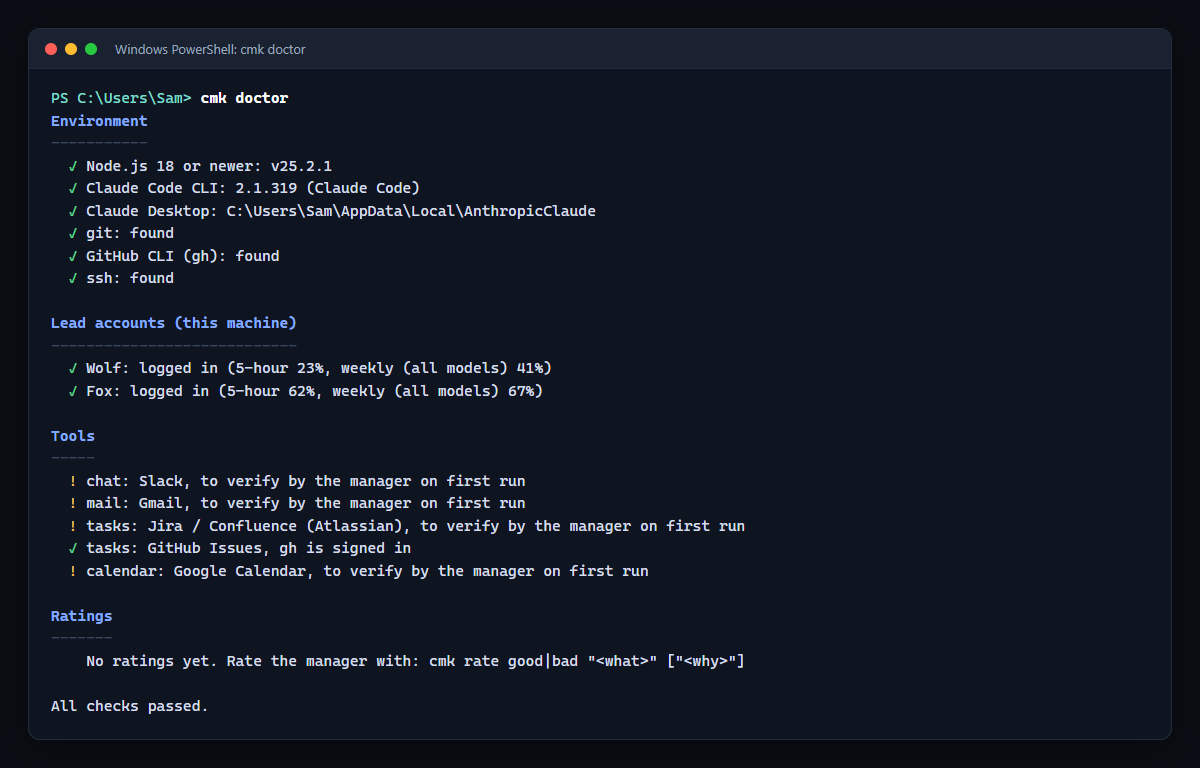
It re-checks the environment, every account, every machine, your tools and your recent ratings. If something is wrong it says what and how to fix it, and exits with a problem count.
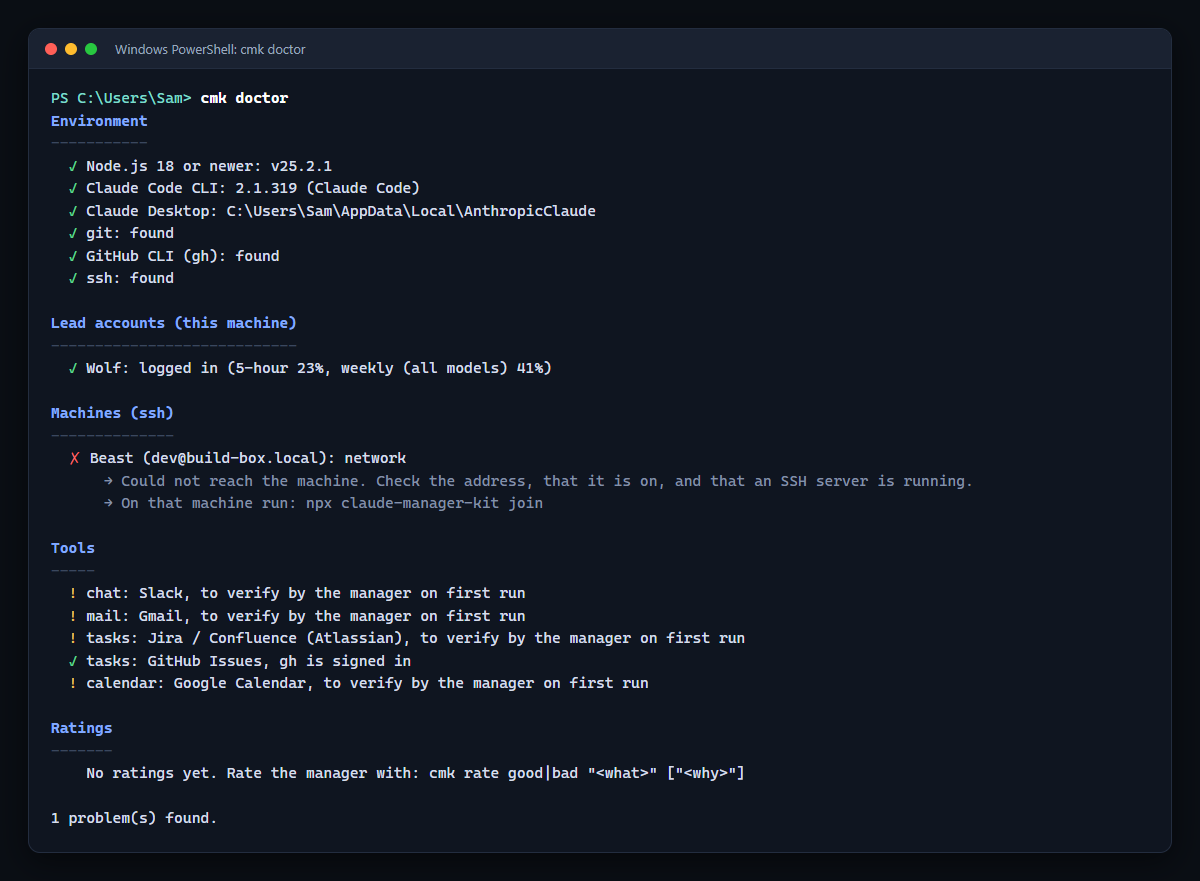
Here a machine is not reachable. You get the reason, a hint, and the join command to run on that machine.
cmk usage
cmk usage
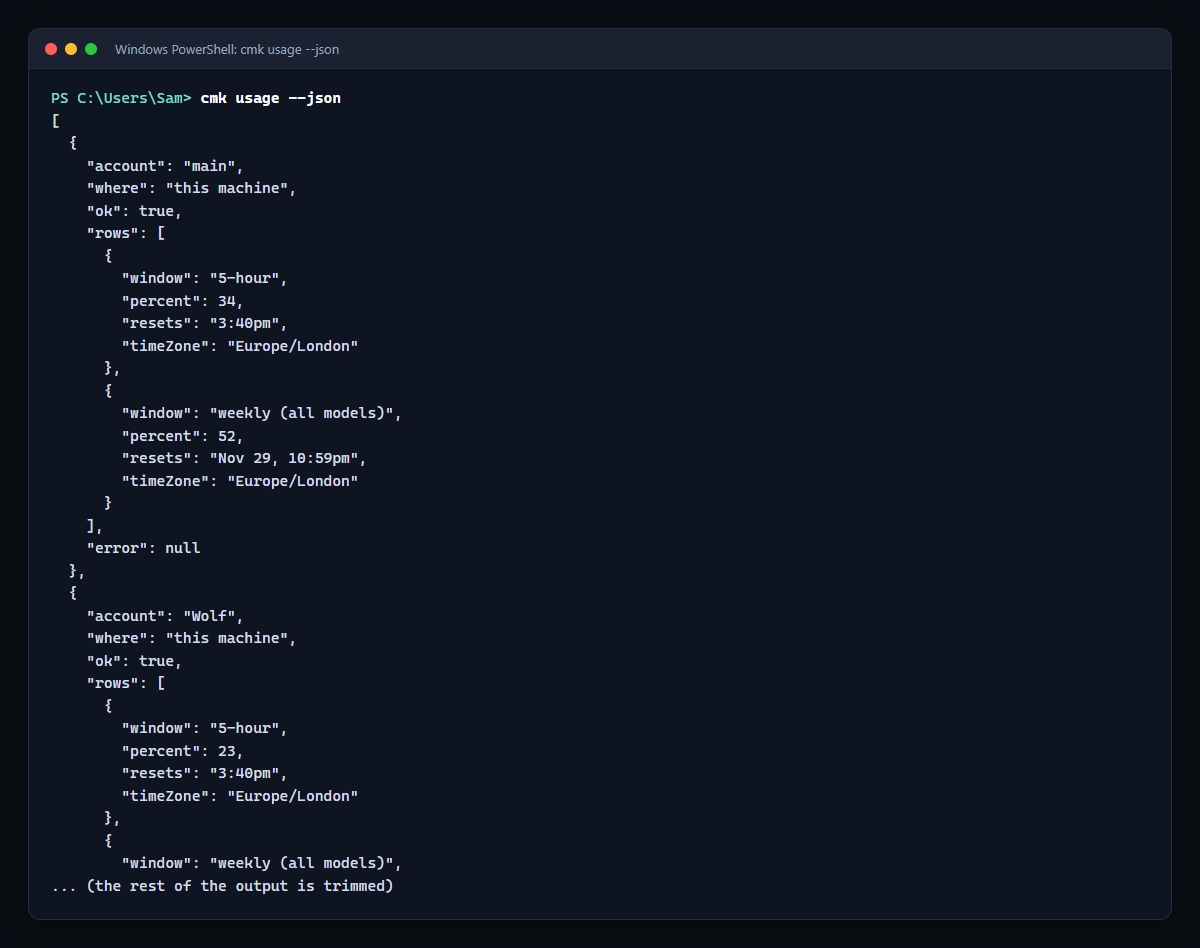
cmk usage --json
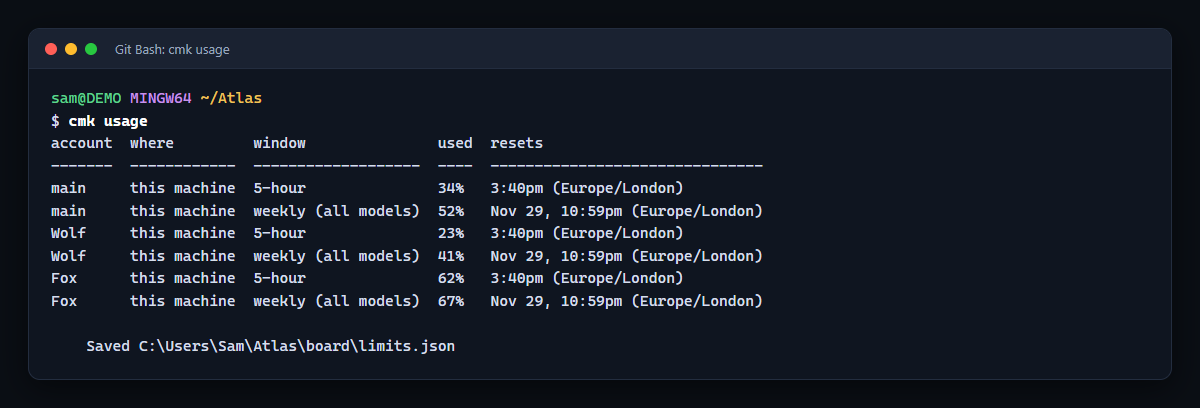
It reads the plan usage of your main account and every lead and prints a table. It also writes board/limits.json, which the board reads. Add --json for the same data as JSON.
cmk lead: start, reply, status, result, stop
Leads are background jobs. You give a lead a short brief in a file, and it runs claude -p headless on that account or machine. The brief is always sent on stdin, never on a command line.
cmk lead start <lead> <job> <brief-file> [--model sonnet|opus|haiku] [--cwd <dir>] [--wait]
cmk lead reply <job> <brief-file> [--model ...] [--wait]
cmk lead status [job]
cmk lead result <job>
cmk lead stop <job>
Start. One job per task, on the lead you choose.
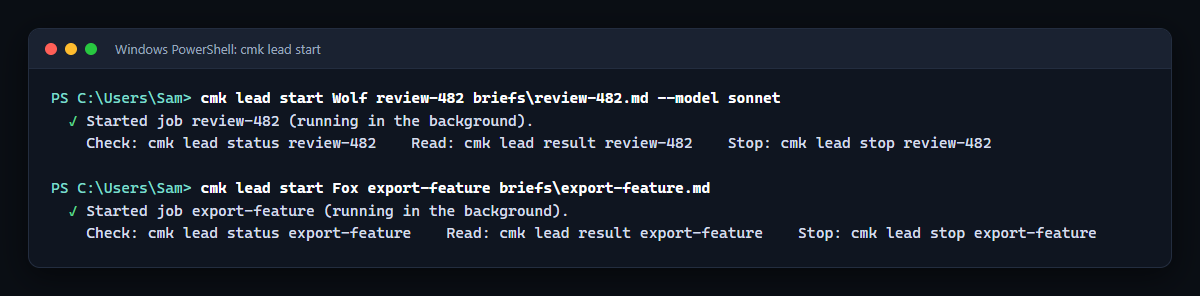
The default model for start comes from your config (sonnet unless you changed it). Jobs run in the background, so the command returns at once. Add --wait to block until the job ends.
Status. One job or all of them.
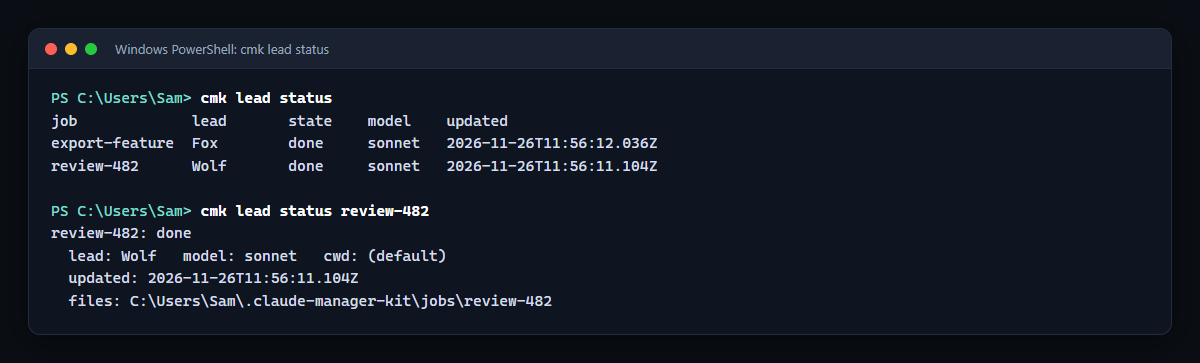
A job is running, done, failed or stopped. If a "running" job's process has vanished, status reports it as failed instead of lying.
Result. Read the last answer.

Reply. A result that ends with a QUESTION: line is a question for the manager. Product, scope and business questions go up, never straight to you.
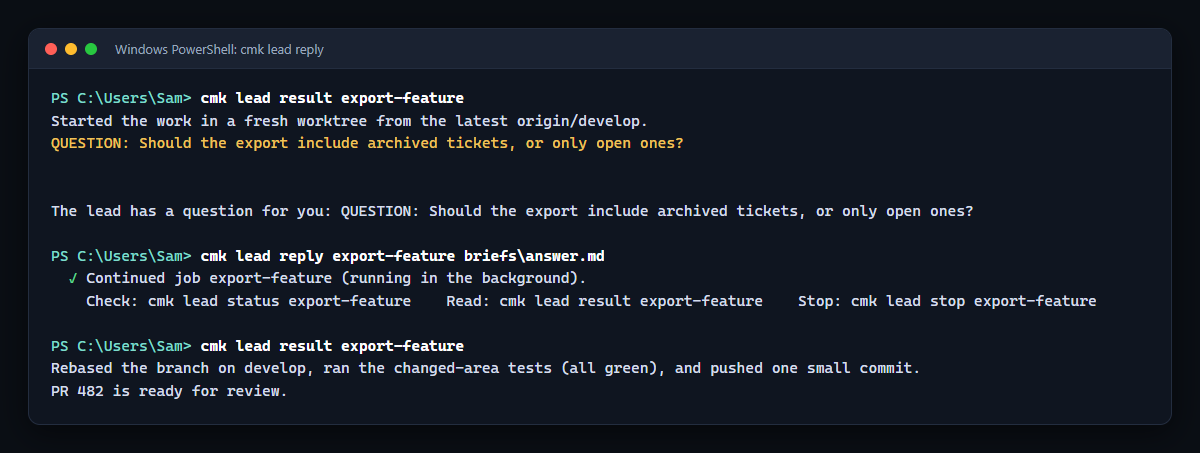
reply continues the same job in the same folder with --resume, so the lead keeps its context. You can only reply to a job that is not running.
Stop. A runaway job can be stopped at any time.
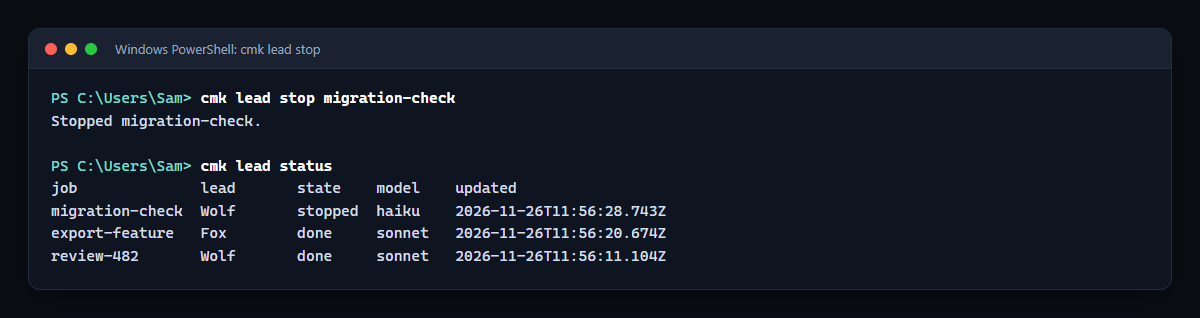
Job files live in ~/.claude-manager-kit/jobs/<job>/: prompt.txt, status.txt, session.txt, result.md, history.md and err.log. For a machine lead, the job runs claude -p over SSH with the brief streamed to it.
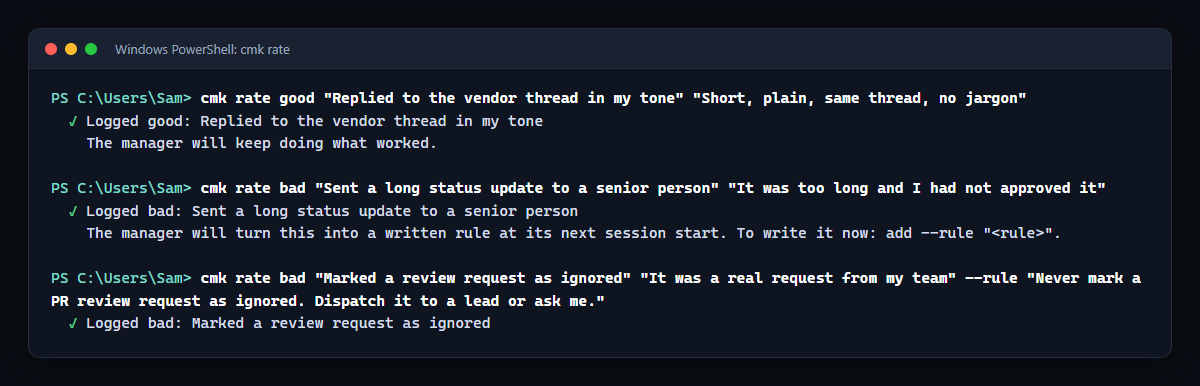
cmk rate
cmk rate good "<what>" ["<why>"]
cmk rate bad "<what>" ["<why>"] [--rule "<rule>"]
This is the learning loop. I explain it in the next section, with the real output.
cmk update
cmk update [--home <path>] [--yes]
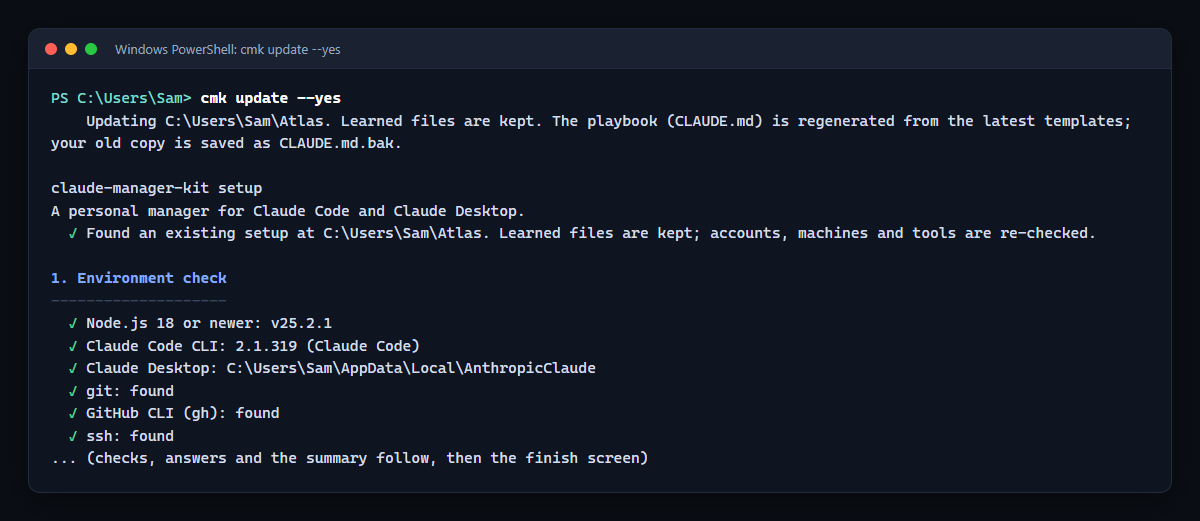
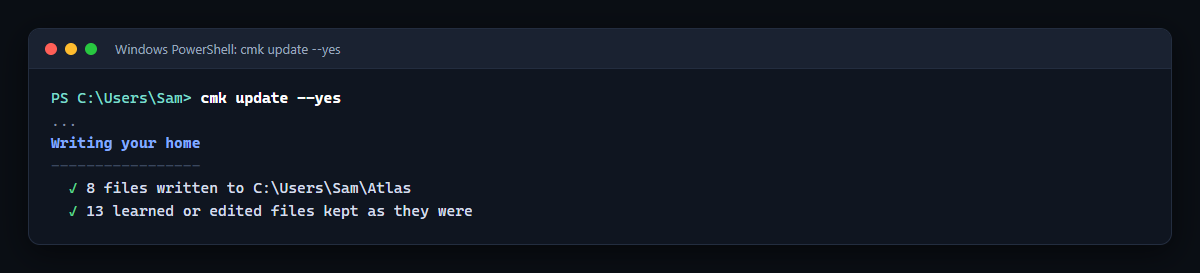
When a new version brings an improved playbook, run cmk update. It regenerates CLAUDE.md from the latest templates and saves your old copy as CLAUDE.md.bak. It re-checks everything and keeps what the manager learned.
Moving to a new machine or account
Copy the home folder to the new computer. Then run:
npx claude-manager-kit setup --home <path>
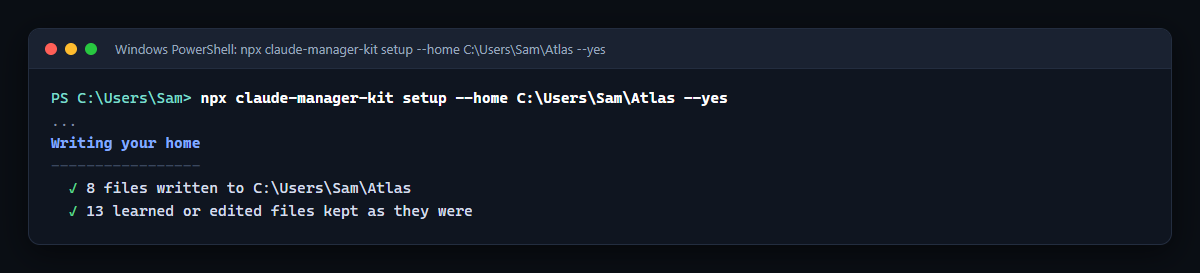
It keeps the learned files (tone, memory, ratings, tasks, rules) and only redoes accounts, machines and tool connections, because those belong to each computer.
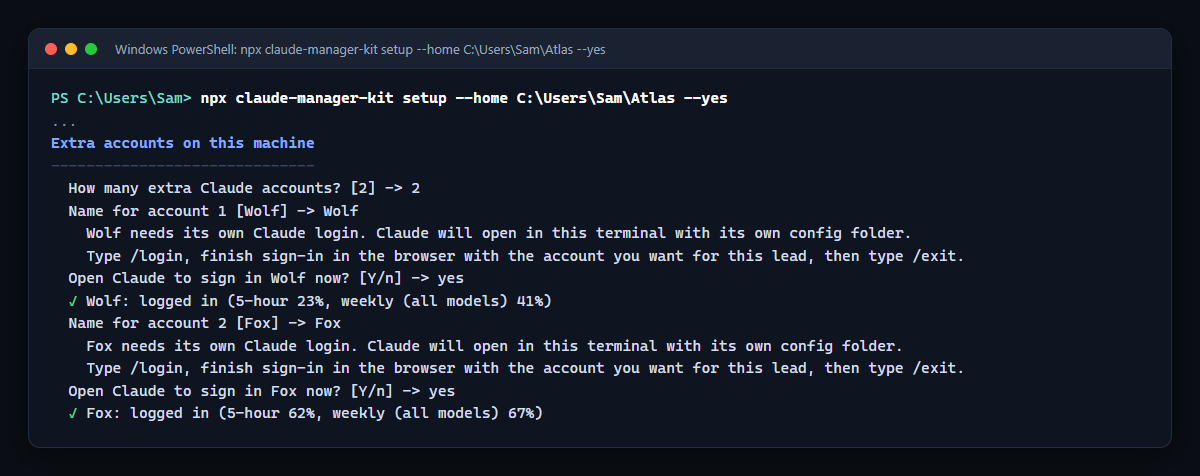
Logins are not portable, and that is on purpose. A changed CLAUDE.md is saved as CLAUDE.md.bak before it is regenerated.
join: setting up the other machine
On the other computer (the one that will run a lead), run:
npx claude-manager-kit join
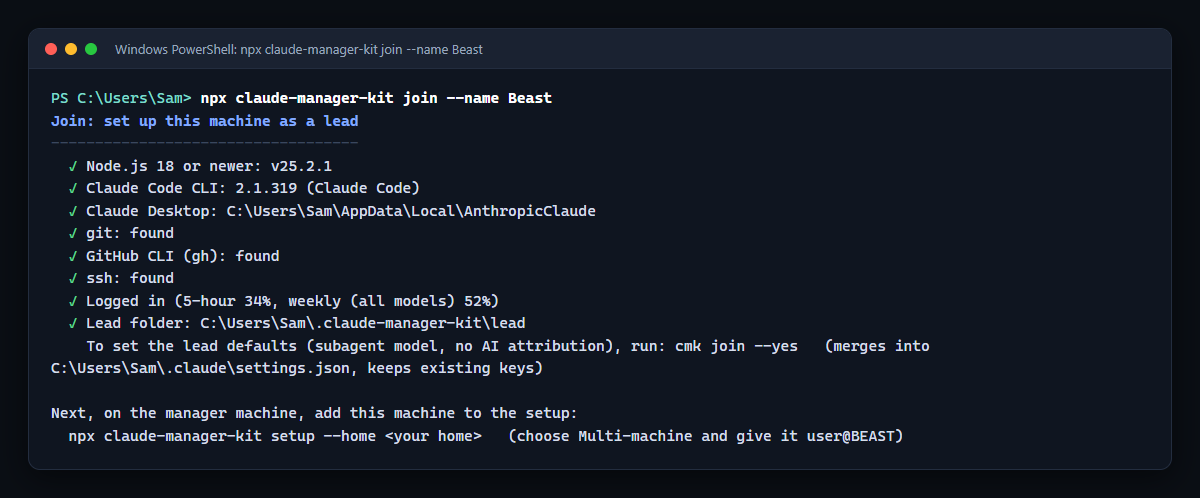
It checks Node, Claude Code and git, checks that Claude is logged in, and creates a lead folder under ~/.claude-manager-kit/lead. It then tells you the next step on the manager machine: run setup again, choose Multi-machine and give it user@hostname.
npx claude-manager-kit join --yes
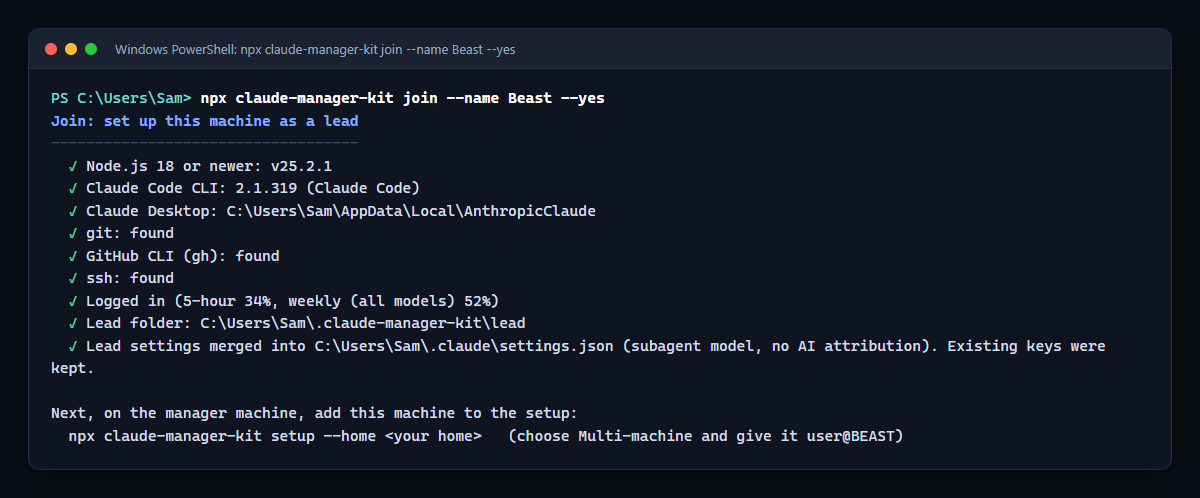
With --yes it also merges the lead defaults (a subagent model and no AI attribution) into Claude's settings file. Existing keys are kept. Use --name <name> to label the lead folder.
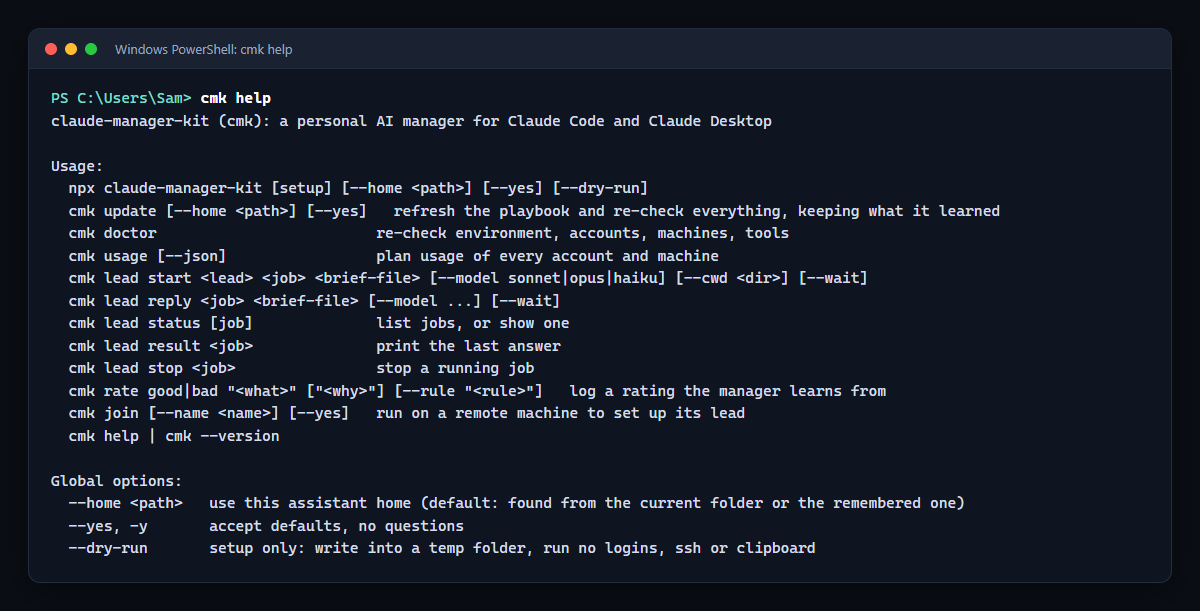
You can see all commands any time with cmk help:
Learning from ratings
The manager improves from your feedback, a bit like reinforcement learning, but made of plain files. There is no model training and no API. It learns through its own rules and memory, which it re-reads.
Here is the loop:
- You rate. Say "good" or "bad" in the chat, give a correction, or run
cmk ratefrom a terminal. A correction counts as a bad rating even if you do not use the word. - It logs the rating in the same turn in
memory/ratings.jsonl, one JSON line per rating. - Good rating, reward. It writes down what worked (the approach, the tone, the timing) as something to keep doing.
- Bad rating, penalty. It says what went wrong in one line, finds the cause, and writes a concrete rule in
rules.md,CLAUDE.mdor the tone model so the mistake does not repeat. A bad rating without a rule counts as unfinished work. - It reviews the log at every session start and in the weekly report: counts, new rules, and any rule that keeps being broken (so it gets rewritten more sharply).
Autonomy never widens from a good rating. Only you change the autonomy modes.
Here are three ratings logged from the terminal:
And this is what lands in memory/ratings.jsonl:
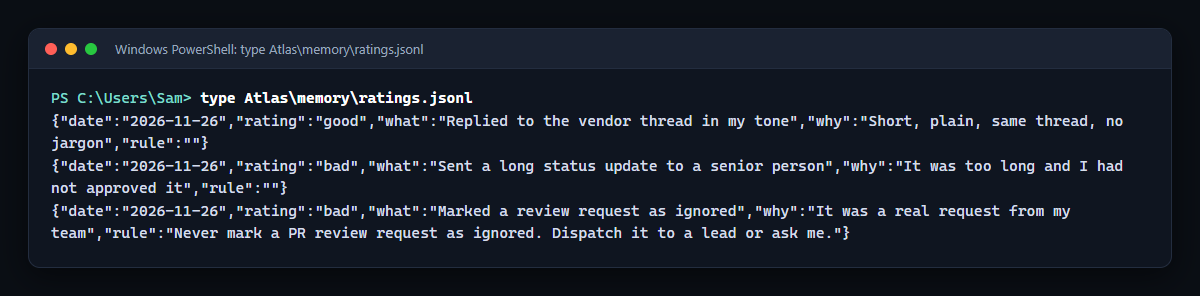
Each line has date, rating, what, why and rule. The last line already has its rule. The second one does not, so it is waiting:
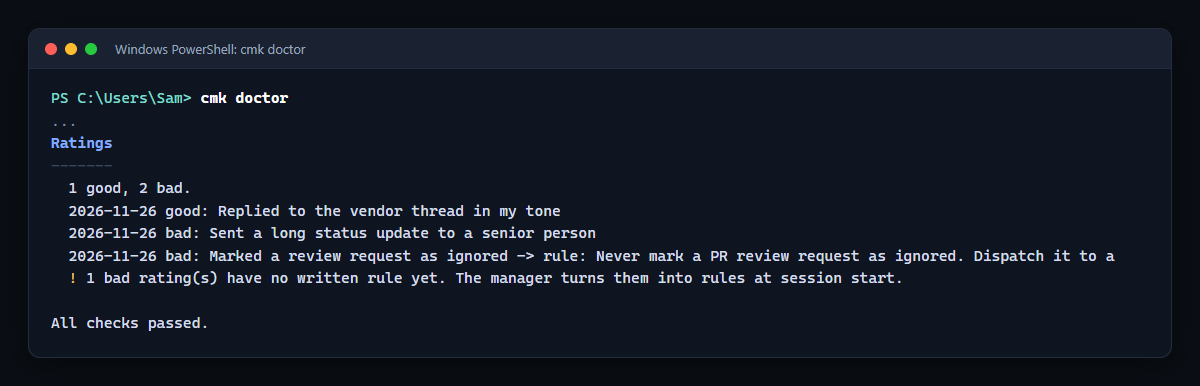
cmk doctor shows the latest ratings and warns about bad ratings without a rule. At the next session start the manager turns that one into a written rule. It could look like this (an example I wrote to show the idea, not a captured file):
Rule from a bad rating (2026-11-26): Status updates to senior people
are one line, and only after I have approved the text.
The rule goes where it will be read, and rules from bad ratings win over the manager's own habits.
Saving limits
Plan usage is a shared budget. The playbook the kit generates tells the manager and the leads to protect it. These are the rules I use, and they are written into the generated files:
- Check usage before starting work.
cmk usagealso writesboard/limits.json. - Stop starting new work at 85 percent of the 5-hour limit. Wait for the reset time it prints, then continue.
- One development job at a time per account.
- A fresh job for every task. A long-lived job re-sends its whole history on every call. Resume a job only to answer its own question or finish the same task.
- Lean teams. The smallest team that keeps quality: one developer, one tester, one reviewer. Add a security reviewer only for payments, auth, webhooks or customer data.
- Targeted tests. Run the tests of the changed area while building, and the full suite once before the pull request.
- Opus only for planning. Coding, reviewing and debugging run on Sonnet. Mechanical work runs on Haiku.
- Short prompts. No re-reading large files it already summarised, and no full-repo searches when the plan names the files.
Honest note: these are instructions in the playbook that the models follow. The kit does not enforce the 85 percent line in code. What the kit adds is the data: cmk usage gives the numbers, and the manager reads them.
Safety model
This part matters most to me, so here is how it is built.
- No passwords, tokens or API keys are asked for, stored or printed. Accounts sign in with Claude's own login. Tools connect through their official connectors or OAuth. SSH uses your own keys.
- The kit makes no network calls itself. It runs
claudeandsshon your behalf, and Claude and your connectors work as usual. - Credentials never live in the portable home folder. Account logins live in
~/.claude-manager-kit/accounts/<name>/, outside the home you copy around. - Propose mode by default. Every area starts as "propose only".
- An always-ask list in every mode. Production deploys, payments and money, permissions and access, deleting data, messages to senior people you list, and anything external you mark as sensitive.
- Leads run with
acceptEditsby default.bypassPermissionsis used only if you choose it in the wizard, and the wizard warns you. - No AI attribution in commits or pull requests. Settings are written for the manager and for every lead account, so commits and PRs carry no "Generated with" or co-author lines.
- Plain hard rules for leads. Never merge to a production branch, never force push, never change production configuration or secrets, never send mail or post as you outside the autonomy table.
Again, honestly: the hard rules are part of the playbook the models read, not a technical sandbox. Use leads only on accounts and machines you are comfortable with.
The portable home folder
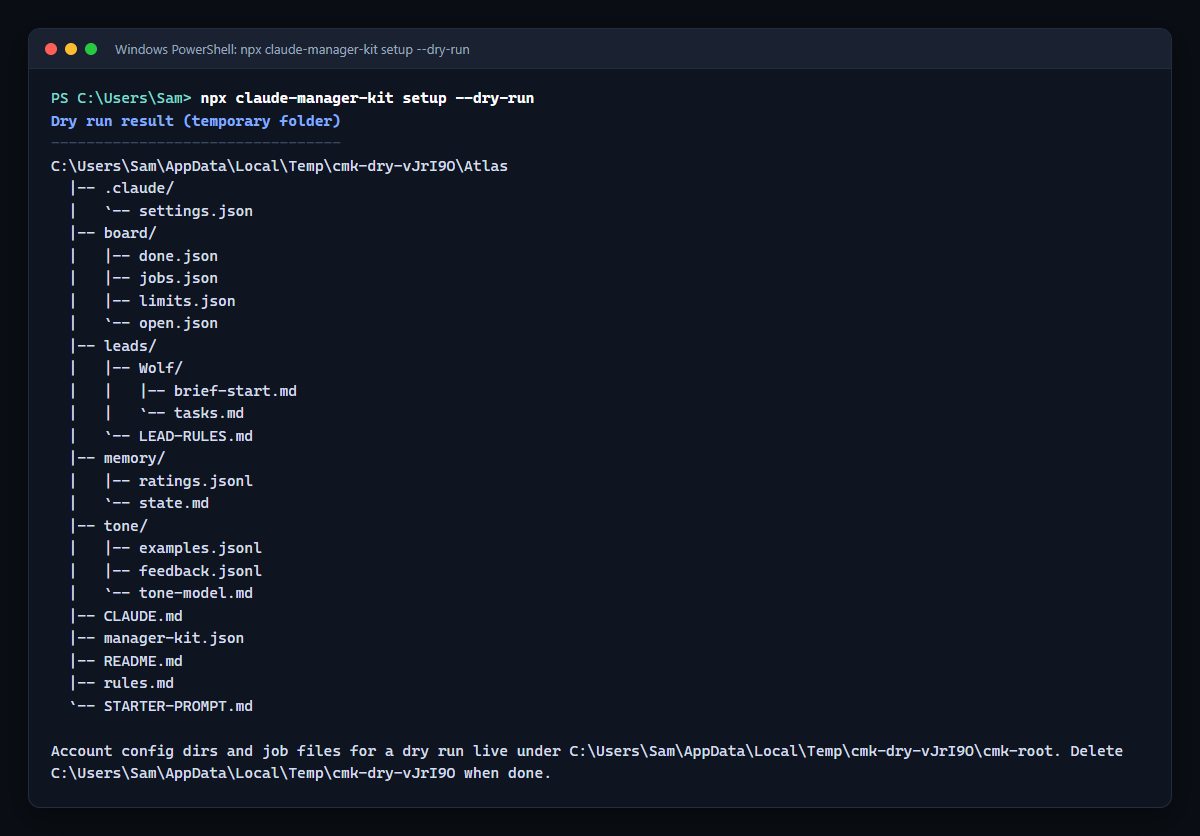
This is the whole assistant. Copy it and you move it.
| Path | What it is |
|---|---|
manager-kit.json | Config: profile, setup type, accounts, machines, tools, autonomy, schedules, models |
CLAUDE.md | The manager playbook, generated from the config and regenerated by setup |
.claude/settings.json | Project settings for the manager: model opus, no AI attribution |
rules.md | Triage rules and guardrails. Yours to edit, never overwritten |
tone/ | Tone model, examples and feedback, filled over time |
memory/state.md | The manager's notebook: commitments, who it waits on, decisions |
memory/ratings.jsonl | Good and bad ratings and the rule learned from each |
board/ | Open work, done, jobs and plan limits |
leads/LEAD-RULES.md | Rules every lead follows |
leads/<name>/ | brief-start.md and tasks.md for each lead |
meetings/ | Meeting notes, when a meeting source is set |
STARTER-PROMPT.md | The first message for the manager session |
README.md | What each file is |
The board/limits.json file written by cmk usage looks like this:
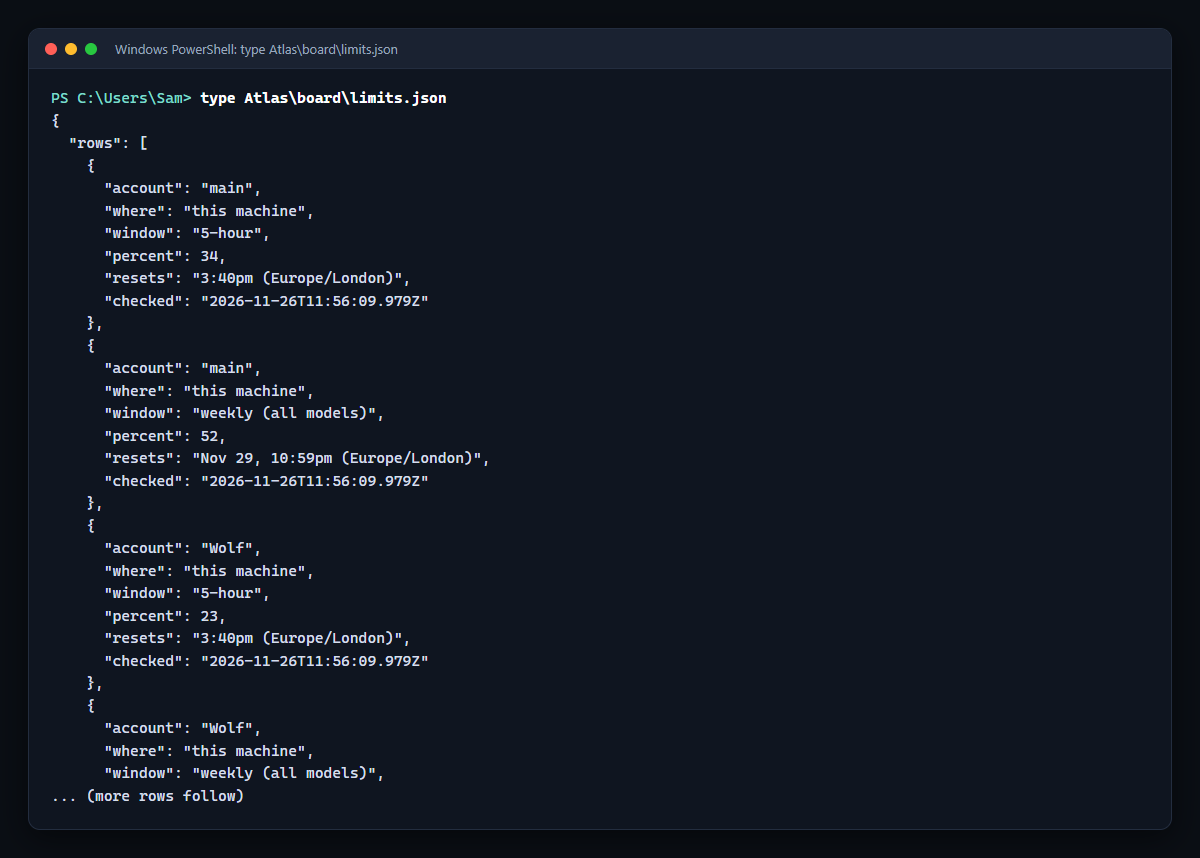
Edit rules.md freely. CLAUDE.md is regenerated, so lasting rules belong in rules.md or memory/state.md.
FAQ and troubleshooting
Does it need an API key? No. It uses your Claude plan through Claude Code and Claude Desktop.
Does it send my data anywhere? The tool itself makes no network calls. Claude and your connectors work as usual. The config, including company type and names, stays on your disk.
Why extra accounts? Plan limits are per account. Leads on their own accounts keep the manager's budget free. Use accounts you are allowed to use under Anthropic's terms.
How do I stop a runaway lead? cmk lead stop <job>. The playbook also tells the manager to check cmk usage first and to stop at 85 percent of the 5-hour limit.
Can I edit the playbook? Edit rules.md freely. CLAUDE.md is regenerated by setup. Put lasting rules in rules.md or memory/state.md.
The wizard says nothing was written. A required item is missing (Node 18+, Claude Code or git), or you did not confirm the summary, or the input ended early. Fix the item or run again. Use --yes to accept every default.
I typed --dryrun and it refused. Unknown options are refused on purpose, so a typo cannot write real files. The flag is --dry-run.
cmk is blocked in PowerShell. Run cmk.cmd, or allow local scripts once with Set-ExecutionPolicy -Scope CurrentUser RemoteSigned.
claude is not found. On Windows it may be claude.cmd or claude.exe, and the tool finds it with where. Open a new terminal after installing. You can also point the kit at a different executable with the CMK_CLAUDE_BIN variable.
SSH login fails for a machine. Add your public key to that machine (ssh-copy-id user@host, or the PowerShell command above on Windows) and make sure key login works without a password prompt.
SSH works but claude is not found there. Install Claude Code on that machine and put it on the PATH for non-interactive shells: ~/.zshenv on macOS, near the top of ~/.bashrc on Linux. For a Windows machine reached over SSH, the OpenSSH default shell (cmd.exe) is detected automatically.
npm install -g fails with EACCES on Linux. Set a user npm prefix as shown above, or use npx.
No clipboard tool on Linux. Install wl-clipboard, xclip or xsel, or open STARTER-PROMPT.md in the home and copy it by hand.
How do I remove it? Delete the home folder and ~/.claude-manager-kit/. Signing out of an extra account first is optional. If you installed it globally, run npm uninstall -g claude-manager-kit. Then remove the Claude Desktop scheduled tasks the manager created, and any MCP server you added.
Environment variables you may want: CMK_HOME (the assistant home), CMK_ROOT (where accounts and jobs live), CMK_ASCII=1 (plain ASCII symbols), and CMK_CLAUDE_BIN with CMK_CLAUDE_BIN_ARGS (use a different claude executable).
Contributing
It is open source under the MIT license. The source code and the issue tracker are linked from the npm package page, in its Repository link. This is how contributing works:
- Fork the repository and make a branch from
main. - Make one small change per pull request: one fix, one feature, one doc update. Commit each step with a clear message.
- Run
npm testandnpm run check. Both must pass. Add or update tests for what you change. - Open a pull request with the template. CI runs the tests on Windows, macOS and Linux, with Node 18, 20 and 22.
- I review and merge every pull request myself. Code owners are required to review, and I squash merge.
The rules are short. Zero runtime dependencies and no install scripts. Never ask for, store or print passwords, tokens or keys. Keep it generic, with no company, product or person names. No em dashes anywhere. No AI attribution in commits or pull requests. Do not force push to shared branches. Behavior changes need a README or CHANGELOG line.
If you find a security problem, do not open a public issue. Contact me through my npm profile.
The most useful help right now is testing on macOS and Linux. I test on Windows, and the other two systems are written from documentation.
Closing: what is next
The package is small on purpose, and it is at version 1.1.0. The biggest gap is honest testing on macOS and Linux, so reports and fixes for those platform steps come first. After that I want to keep the playbook sharp as people use it and rate it, and add more tool options based on what people ask for. If you have an idea, open an issue from the repository link on the npm page.
Try it:
npx claude-manager-kit
- Package: claude-manager-kit on npm
- Author: Muhammad Asim on npm
If it saves you time, rate it. The manager does, and so should the tool.
Subscribe to my newsletter
Read articles from Tech With Asim | Learn, Build, Lead directly inside your inbox. Subscribe to the newsletter, and don't miss out.
More Articles
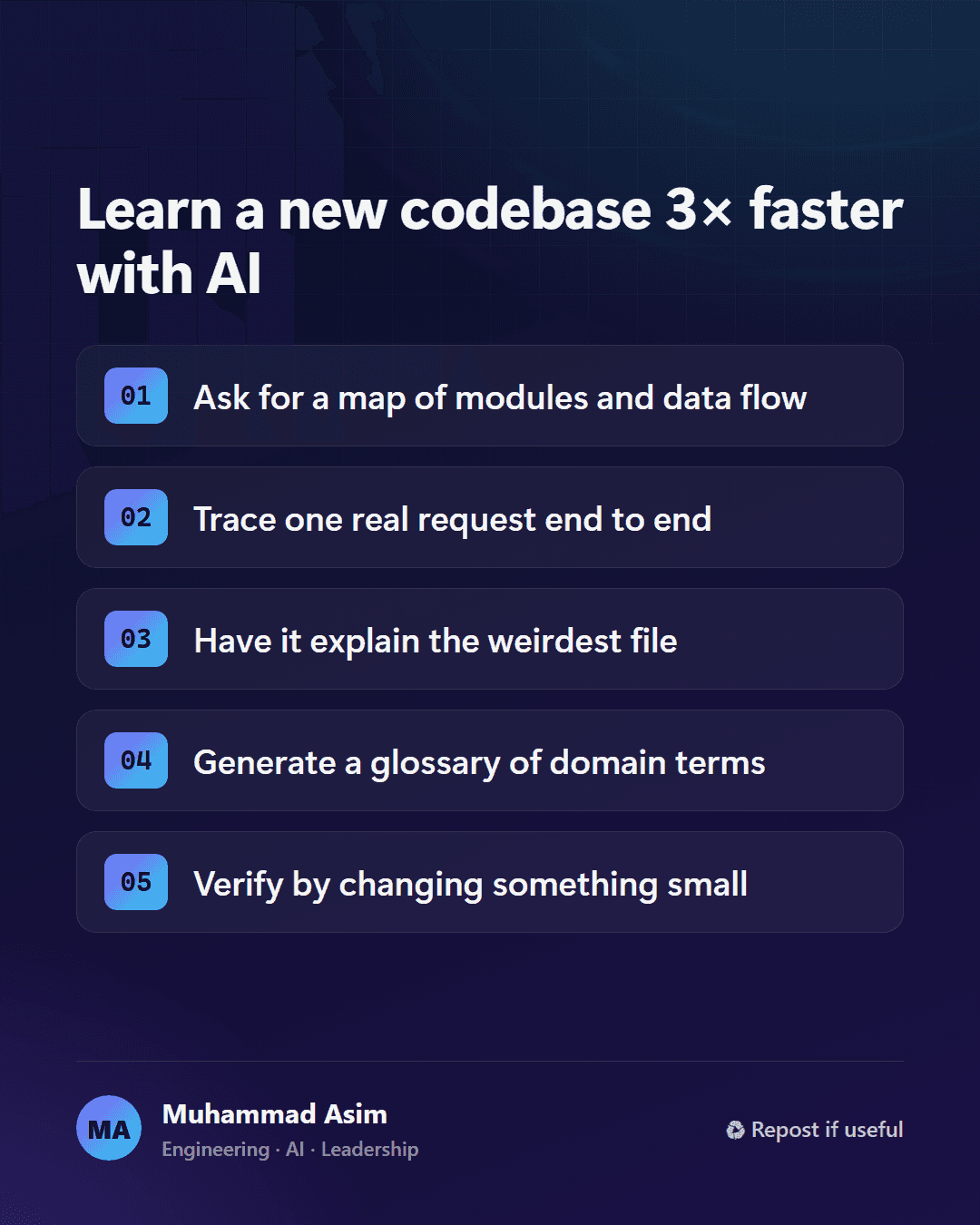
How to Use AI to Understand a Legacy Codebase Faster
Joined a new team or inherited old code? AI is an amazing tour guide. Here is my five-step process to understand a legacy codebase faster, while you stay in control.
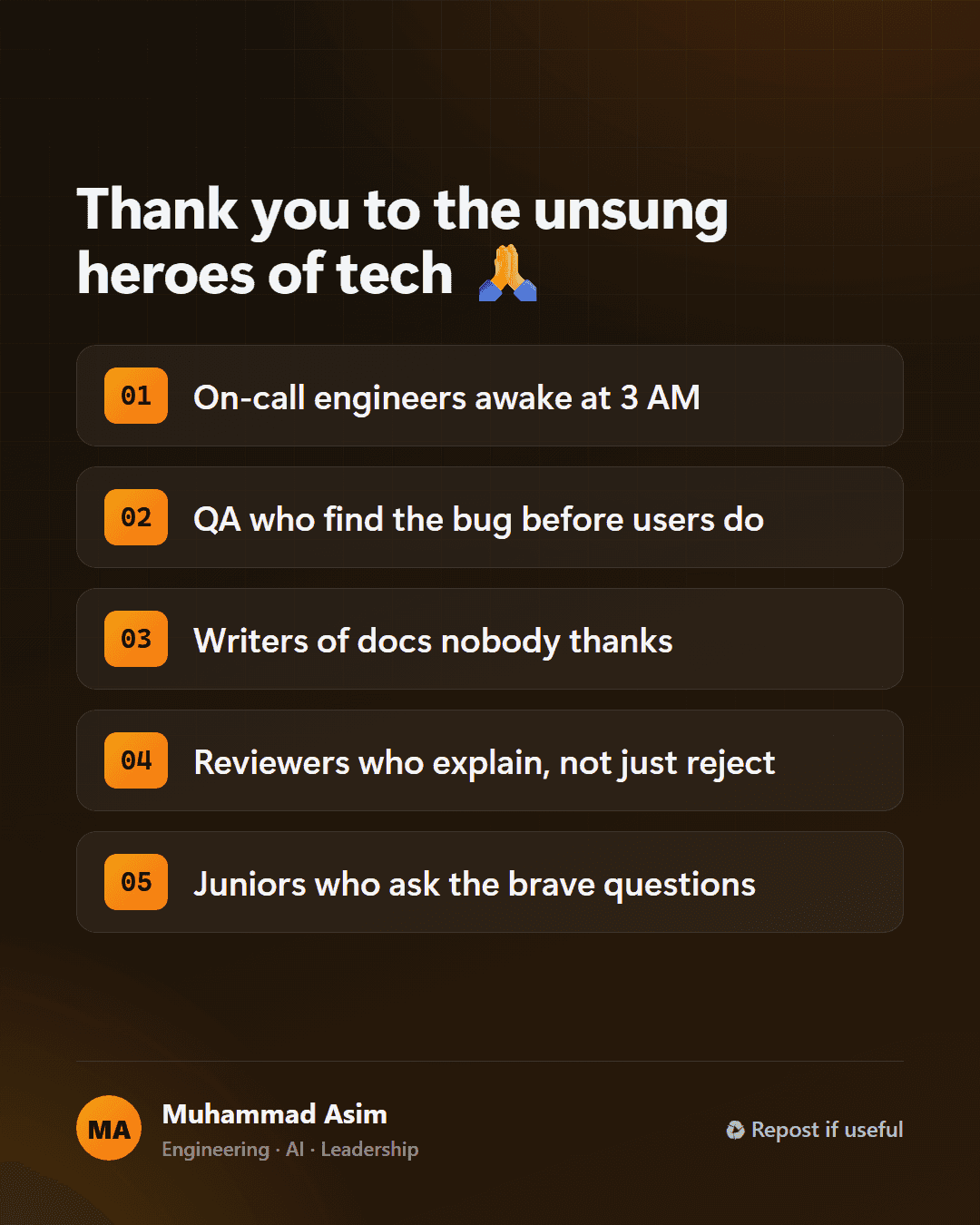
Thanking the Unsung Heroes of Software Teams (and Making Their Work Visible)
It is Thanksgiving in the US, so let us thank the unsung heroes of software who keep things running, and look at how teams can make that invisible work visible.
How to Trust an AI-Generated Regex Before It Reaches Production
The evolution of writing regex: memory, Stack Overflow, now AI. The tools changed, the understanding did not. Here is how to trust an AI-generated regex in production.
Comments